

A trecut ceva timp de cand nu am mai pus ceva pe Blog dar astazi se schimba lucrurile. O sa scriu despre o problema care apare atunci cand avem un management pack pentru Hyper-V 2008 si importam si versiunea pentru Hyper-V 2012, side by side. Problema este generata de faptul ca management pack-ul de HV 2008 targeteaza incorect clase de HV abstracte (clase generale) care se aplica implicit si la management pack-ul de HV 2012. Mai exact are cateva monitoare definite sa afle Health State-ul anumitor componente. Si face asta verificad event log-ul pe targetul respectiv. Problema este ca la Hyper-V 2012 acele loguri un exista.
In acest caz avem 2 solutii la indemana. Fie dezactivam monitoarele respective pentru serverele ce ruleaza 2012, fie cream niste ‘dummy event logs’ pe serverele afectate. Mie personal nu imi place varianta B cu toate ca este perfect valida.
Alertele generate vor fi:
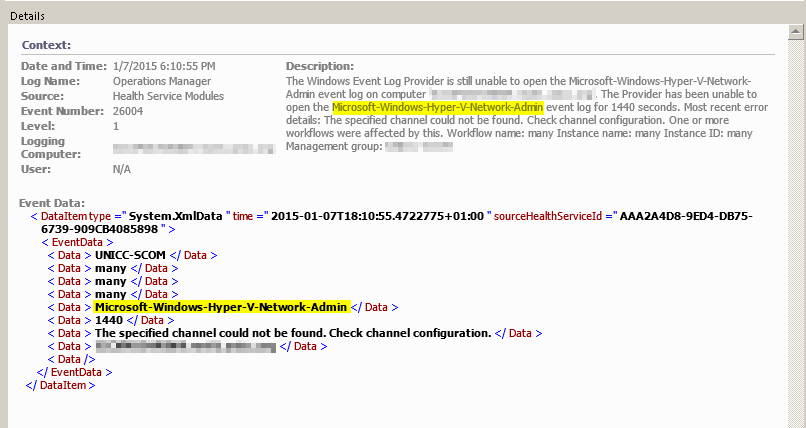
In cazul de mai sus vedem ca verifica Log-ul imaginar ‘Microsoft-Windows-Hyper-V-Network-Admin’ dar vor fi si alte alerte generate de acelasi monitor ‘Microsoft-Windows-Hyper-V-Image-Management-Service-Admin’.
Acum avem ceva informatii. Now we have to see which Monitors look for those Event Logs. Pentru asta folosim powershell:
$HyperVLibraryMP = Get-SCOMManagementPack -DisplayName ‘Microsoft Windows Hyper-V 2008 Monitoring’
$Hyper2008Mon = Get-SCOMMonitor -ManagementPack $HyperVLibraryMP
$AlertImage = $Hyper2008Mon | Where-Object {$_.Configuration -match ‘Microsoft-Windows-Hyper-V-Image-Management-Service-Admin’}
$AlertImage | fl name, displayname
$AlertNetwork = $Hyper2008Mon | Where-Object {$_.Configuration -match ‘Microsoft-Windows-Hyper-V-Network-Admin’}
$AlertNetwork | fl name, displayname
Rezultatele vor fi urmatoarele:

Acum stim ce monitoare trebuiesc dezactivate. Pasii sunt urmatorii:
- Authoring > Change Scope

- Cautam dupa ‘hyper-v virtual’ > Selectam clasele de mai sus > OK.

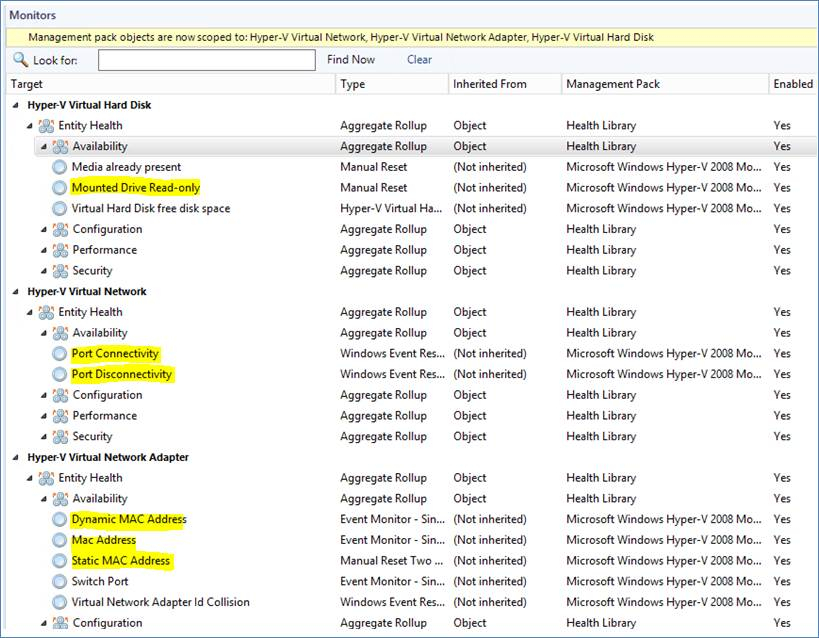
- Expandam pana ajungem la monitoare.
- Mai sus vedem monitoarele ce trebuiesc dezactivate.
- Deschidem Properties pentru primul monitor si confirmam ca incearca sa verifice Log-ul respectiv.

- Facem Overrides > Disable Override > For all objects of another class.
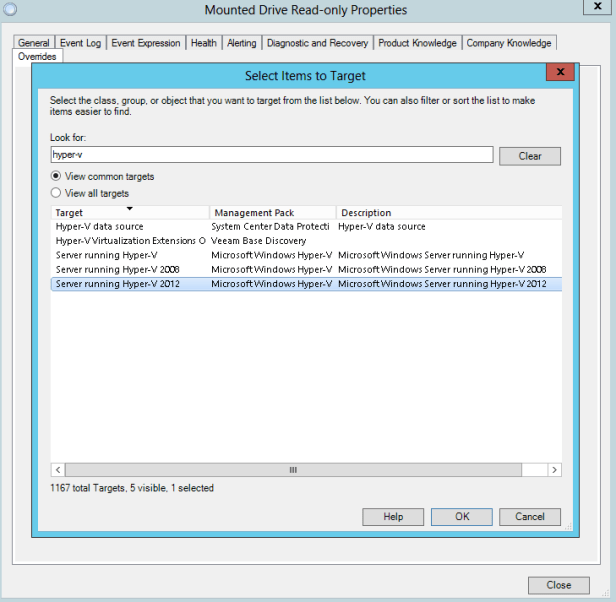
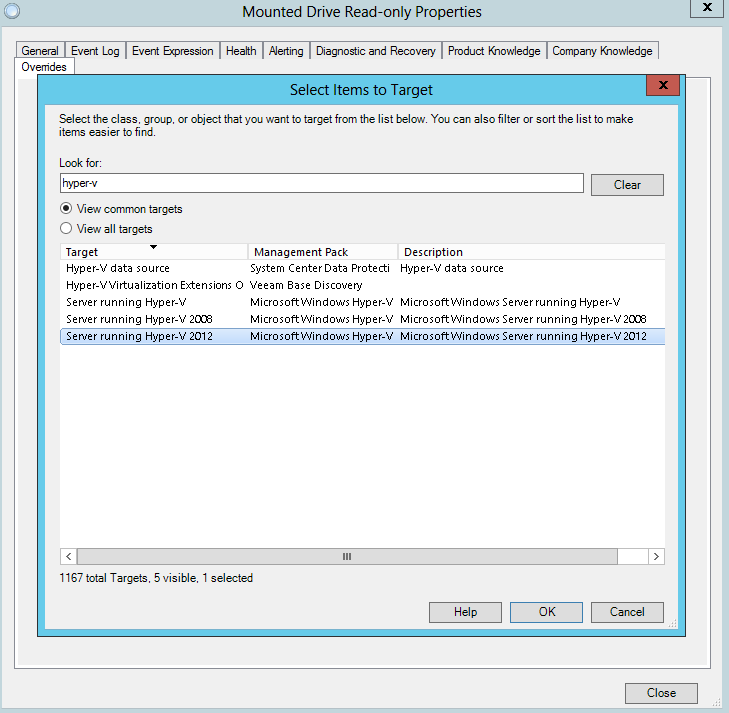
- Cautam dupa ‘Hyper-v’ si selectam clasa de Hyper-V 2012 de mai sus.
- Repetam acelasi process pentru celelalte 5 monitoare ramase. Mai jos cateva screenshot-uri.
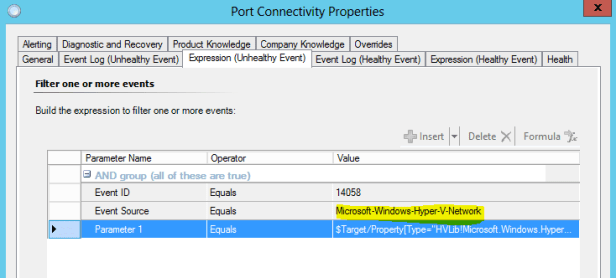





Dupa ce am dezactivat monitoarele, trebuie sa facem Reset Health State pentru serverele afectate. In cazul meu au fost multe.
Am scris un script simplu care face reset pe monitoarele afectate.
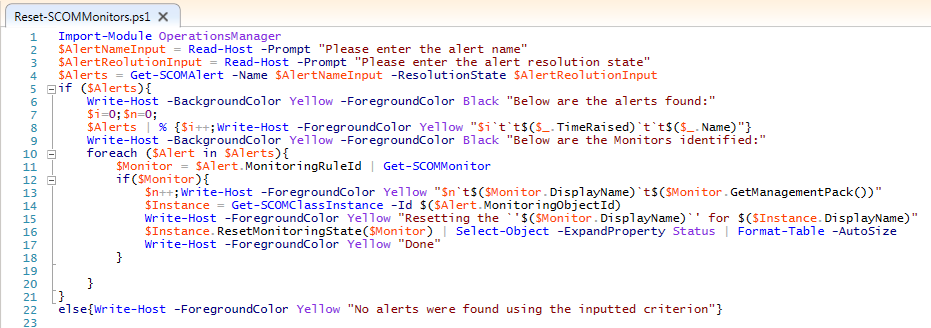
Accepta ca parametrii numele alertei care in cazul nostru este ‘Operations Manager Failed to Access the Windows Event Log’ si Resolution state-ul care in cazul meu este 0 (New). Poate fi orcare din codurile aferente de exemplu Closed 255.
Output-ul arata cam asa in ISE:

Dupa ce am resetat monitoarele nu mai avem alerte. Script-ul in format text mai jos:
Import-Module OperationsManager
$AlertNameInput = Read-Host -Prompt “Please enter the alert name”
$AlertReolutionInput = Read-Host -Prompt “Please enter the alert resolution state”
$Alerts = Get-SCOMAlert -Name $AlertNameInput -ResolutionState $AlertReolutionInput
if ($Alerts){
Write-Host -BackgroundColor Yellow -ForegroundColor Black “Below are the alerts found:”
$i=0;$n=0;
$Alerts | % {$i++;Write-Host -ForegroundColor Yellow “$i`t`t$($_.TimeRaised)`t`t$($_.Name)”}
Write-Host -BackgroundColor Yellow -ForegroundColor Black “Below are the Monitors identified:”
foreach ($Alert in $Alerts){
$Monitor = $Alert.MonitoringRuleId | Get-SCOMMonitor
if($Monitor){
$n++;Write-Host -ForegroundColor Yellow “$n`t$($Monitor.DisplayName)`t$($Monitor.GetManagementPack())”
$Instance = Get-SCOMClassInstance -Id $($Alert.MonitoringObjectId)
Write-Host -ForegroundColor Yellow “Resetting the `’$($Monitor.DisplayName)`’ for $($Instance.DisplayName)”
$Instance.ResetMonitoringState($Monitor) | Select-Object -ExpandProperty Status | Format-Table -AutoSize
Write-Host -ForegroundColor Yellow “Done”
}
}
}
else{Write-Host -ForegroundColor Yellow “No alerts were found using the inputted criterion”}
 Marius Ene
Multumesc.