
Lab scenario overview
We have 2 virtual machines running in VirtualBox that are on the same subnet. Both servers are configured as domain controllers, each in their own forest, respectively DC01.mene.local and DC04.test.lab. We will try to restore Active Directory from one server to another.

In this lab the destination server is a domain controller but doesn’t have to be as you will see at the end that the server where the backup is restored will be formatted. Ideally the destination server should be a new one.
Objective
The goal is to be able to perform an Active Directory restore from a domain controller to another server.
Note: This exercise was developed only for informational purposes and does not represent a full Active Directory backup solution. Forest recovery scenarios are more complex and require thorough planning.
Getting started
In our scenario we will use the built in solution which is Windows Server Backup feature we need to install it on the server first.
Open PowerShell ISE or the normal PowerShell console. I am using ISE for better clarity. Run the following commands:
Get-WindowsFeature | Out-String -Stream | Select-String "Backup"
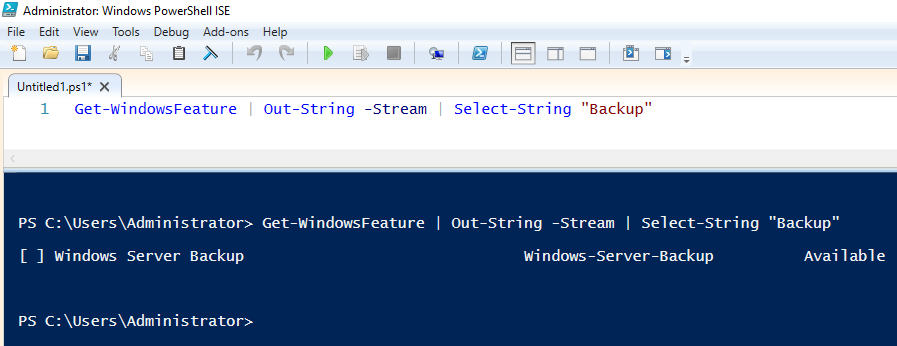
Install-WindowsFeature -Name Windows-Server-Backup -IncludeAllSubFeature –IncludeManagementTools
.png&size=42749&height=271&width=685&alt=)
Note: Incremental backups of Active Directory Domain Services are not supported. Full backups are required. – Considerations for Active Directory Domain Services Backup – Win32 apps
Note: A full server recovery is necessary if you are restoring to different hardware or a different operating system instance.
Keep in mind the following:
- The number drives on the target server needs to be equal to the number in the backup and they need to be the same size or greater.
- The target server needs to be started from the operating system DVD in order to access the Repair your computer option.
- If the target DC is running in a VM on Hyper-V and the backup is stored on a network location, you must install a legacy network adapter.
- After you perform a full server recovery, you need to separately perform an authoritative restore of SYSVOL, as described in AD Forest Recovery – Performing an authoritative synchronization of DFSR-replicated SYSVOL.
Also see AD Forest Recovery – Performing a full server recovery
Case 1: Restore only system state information from DC01 to DC02
Ensure you have either a dedicated local drive or a network location as a destination for the backup or restore process.
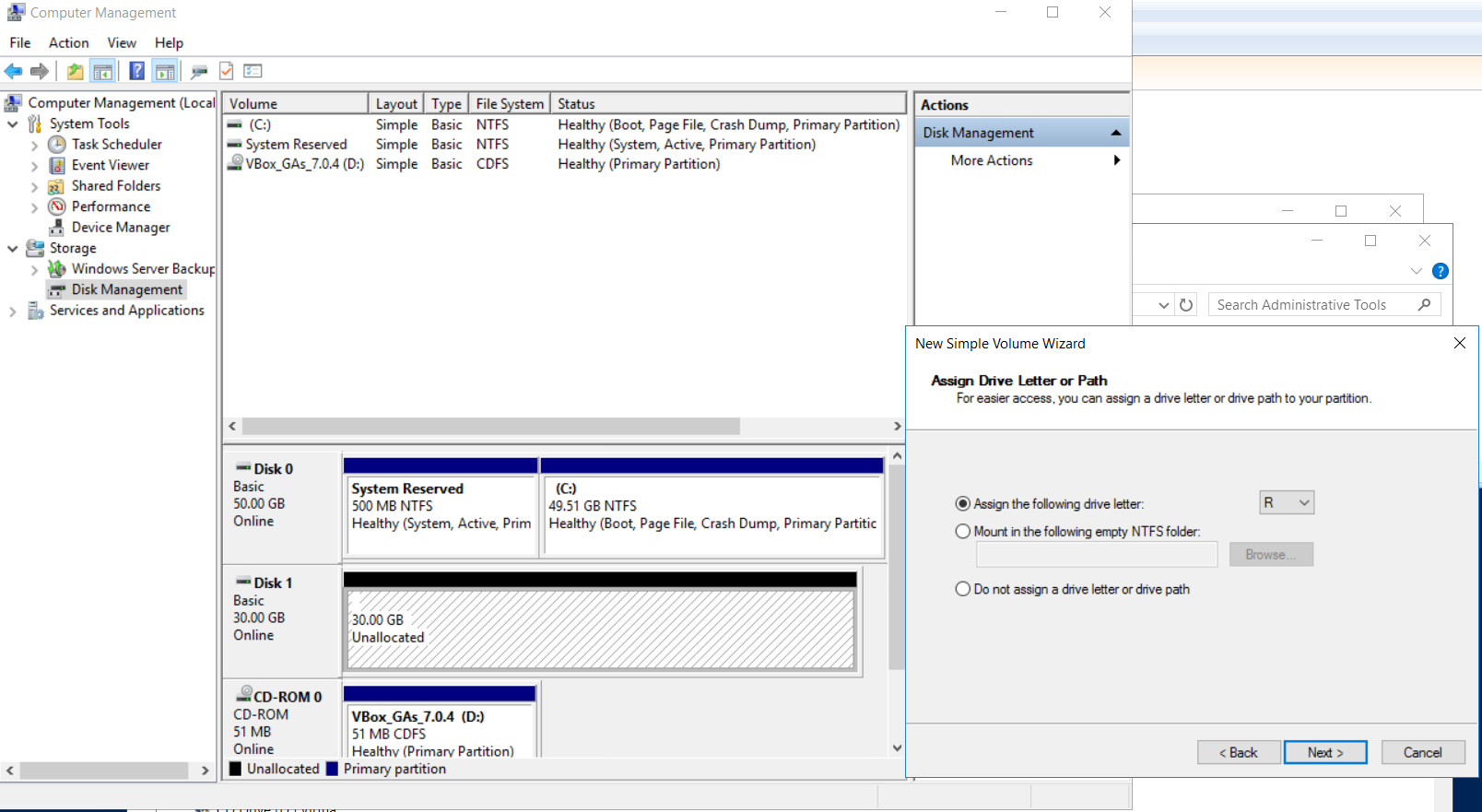
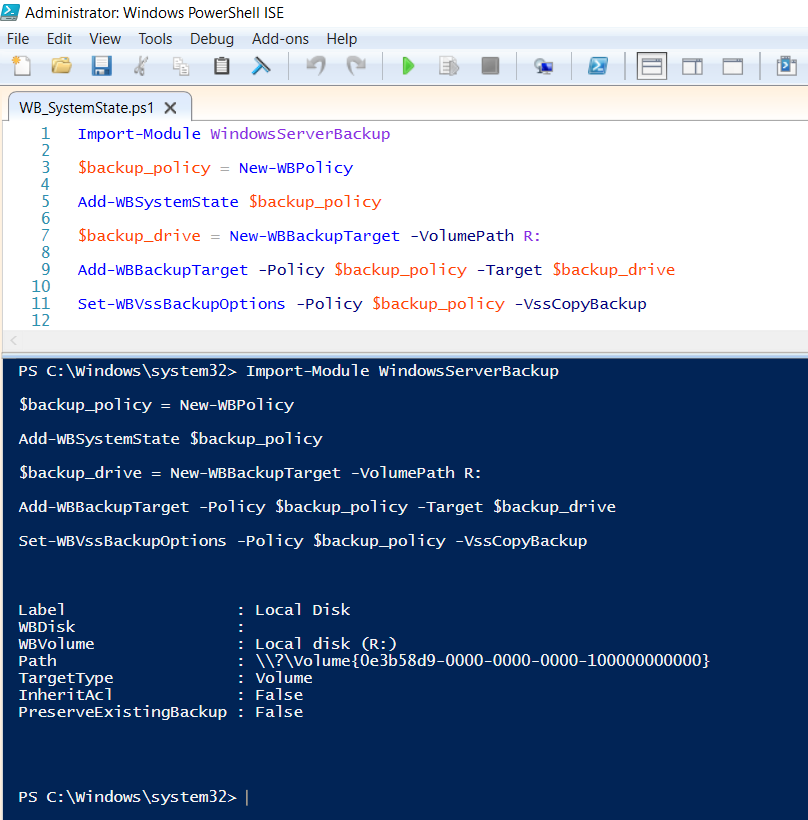
Execute the following commands from an Administrative permissions PowerShell ISE/Console:
Import-Module WindowsServerBackup
$backup_policy = New-WBPolicy
Add-WBSystemState $backup_policy
$backup_drive = New-WBBackupTarget -VolumePath R:
Add-WBBackupTarget -Policy $backup_policy -Target $backup_drive
Set-WBVssBackupOptions -Policy $backup_policy -VssCopyBackup
Finally, to start the backup, execute the following command:
Start-WBBackup -Policy $backup_policy
While in progress it will look like this in PowerShell or the Windows Backup console.
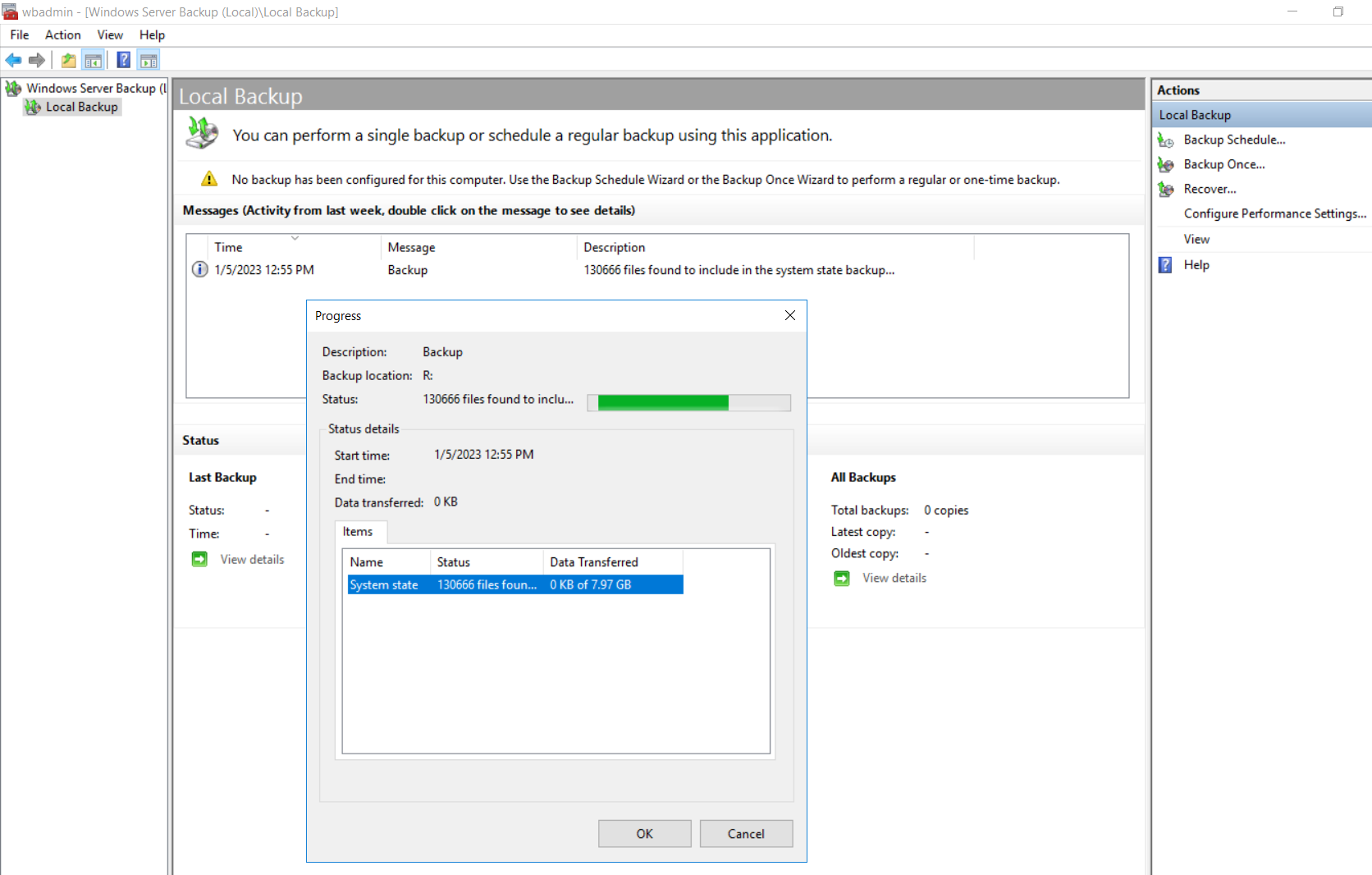
The backup of the system state for my lab environment took about 20 minutes to complete.

On the server DC04, you can restore either from console or from PowerShell:

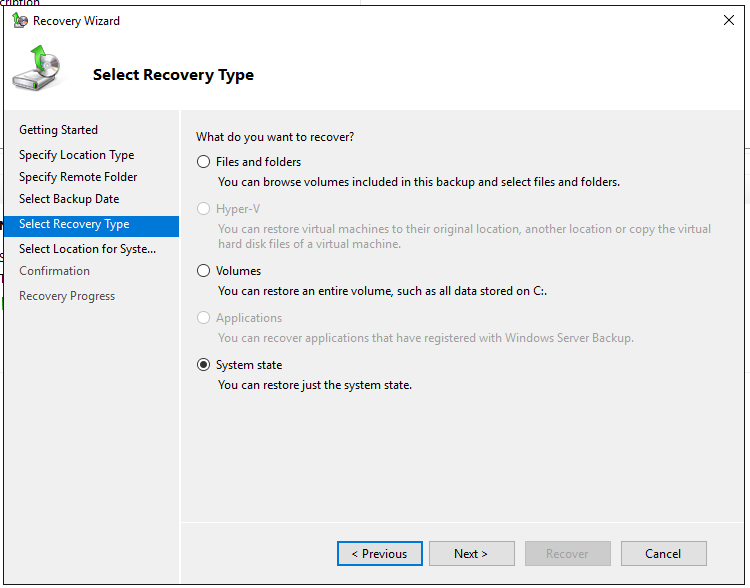
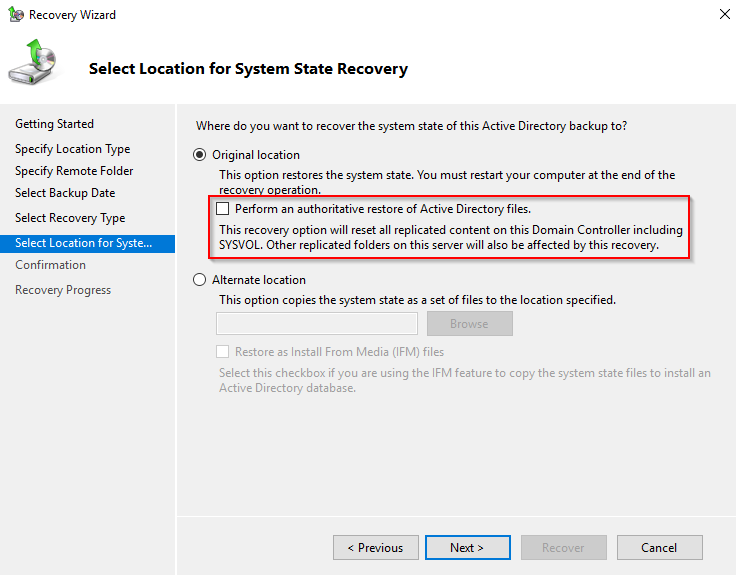
Select the checkbox if the goal is to perform an authoritative restore of AD.
The process fails and we get the errors:
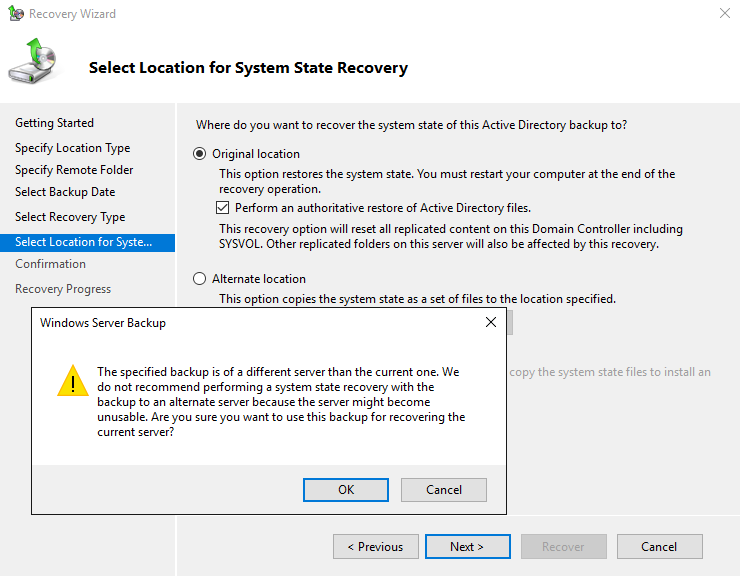
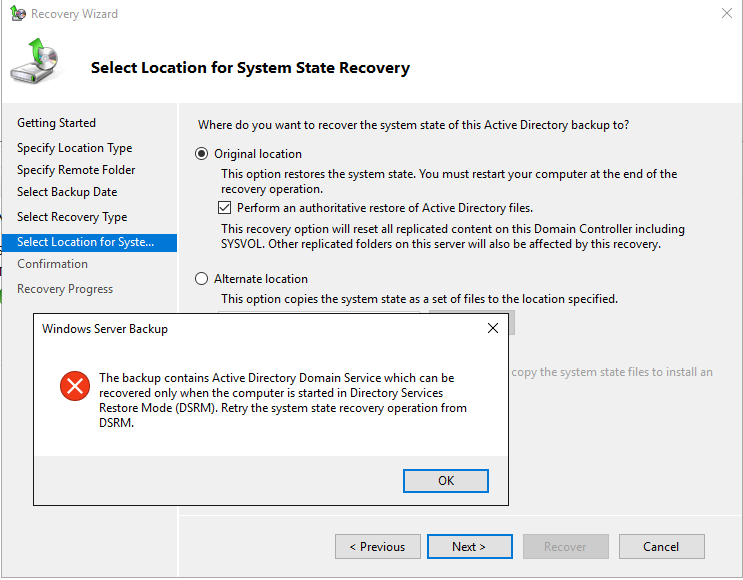
So we try now to do it from DSRM. Execute the command msconfig.exe and select the boot option to DSRM.
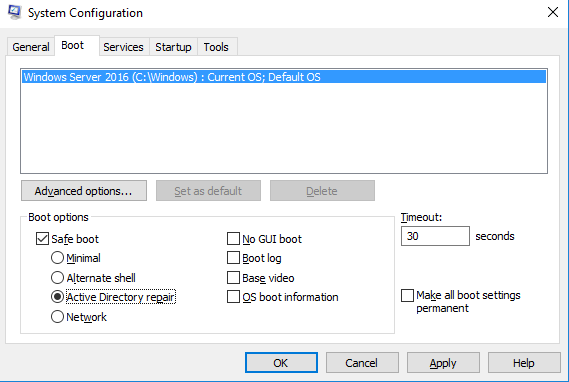
After booting in DSRM, repeat the steps that were previously mentioned.
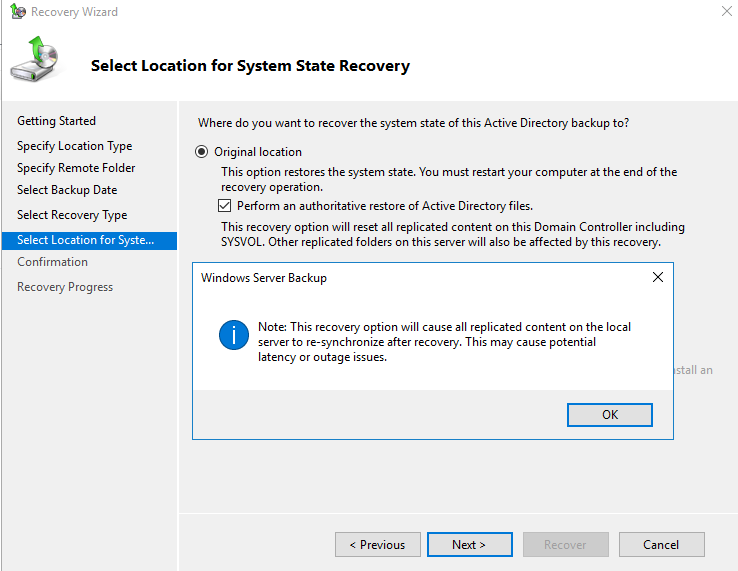
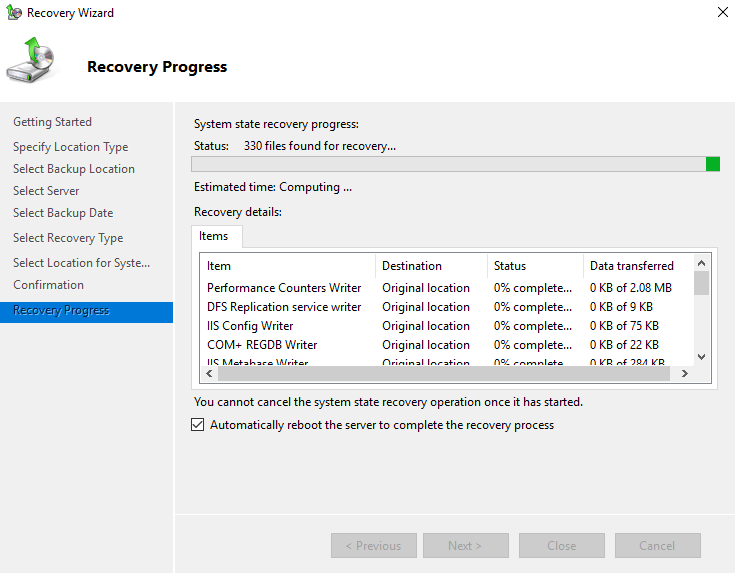
After reboot, we should see the following prompt.
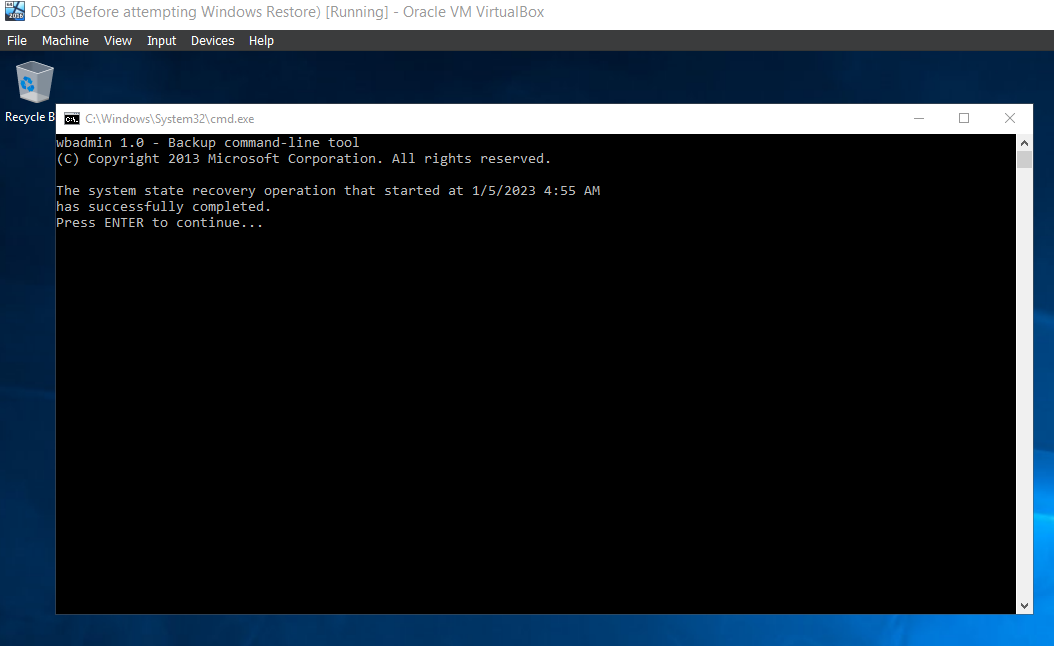
While the restoration process finished without issues, the Active Directory installation is not working on the server and we are presented with errors. Trying to open AD related tools simply fail.
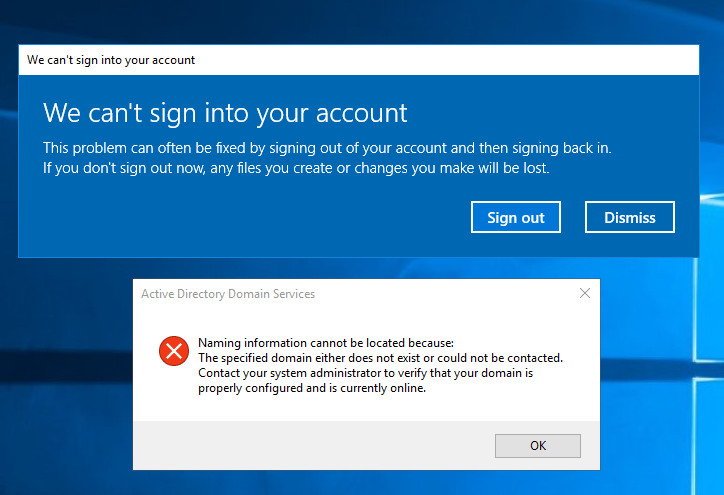
Also the user profile is not properly detected.
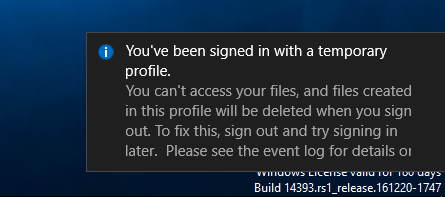
- Run the regedit.exe;
- Go to the registry key HKEY_LOCAL_MACHINE\SYSTEM\CurrentControlSet\Services\Netlogon\Parameters;
- Change the SysvolReady value from 0 to 1;
- Then restart the NetLogon service:
net stop netlogon & net start netlogon
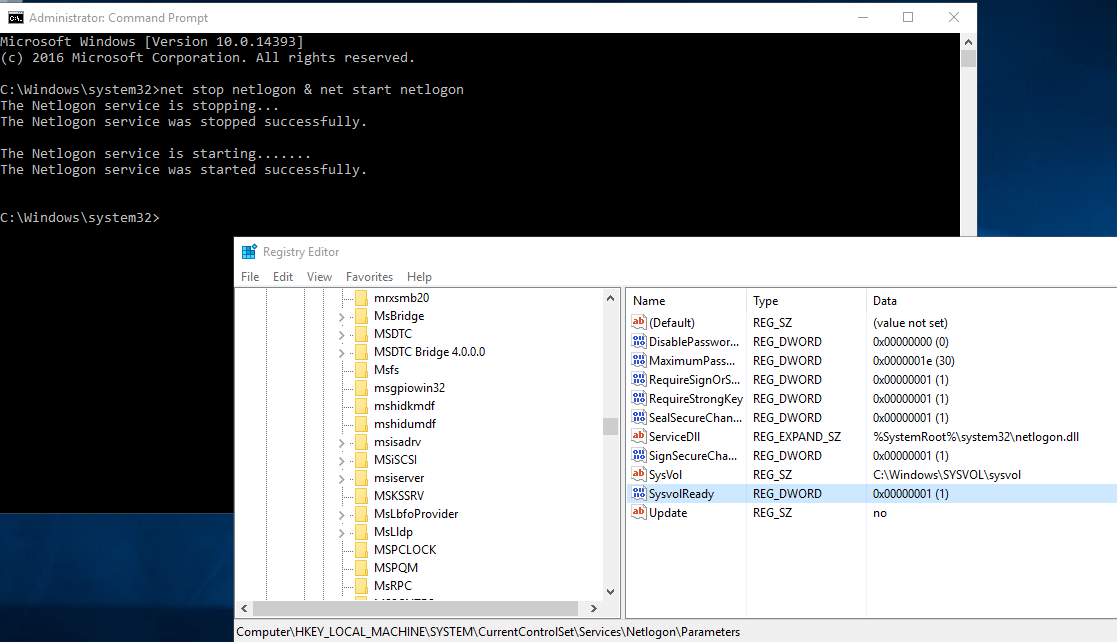
Conclusion: Restoring system state to another server is a possible solution.
Case 2: Attempt to restore system state, C:, reserved from DC01 to DC02
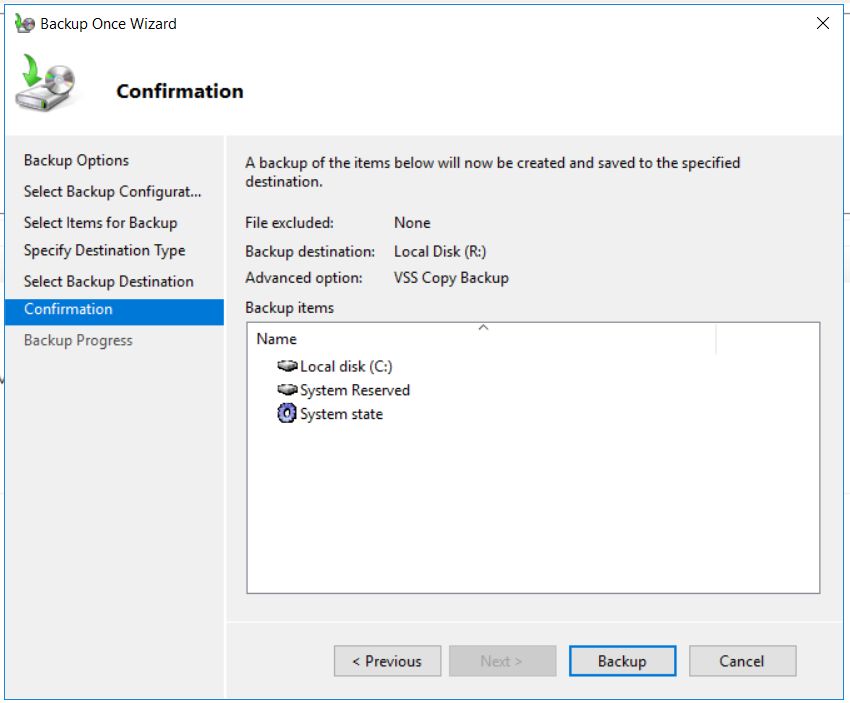
Perform a backup as in the previous case but select the following options:
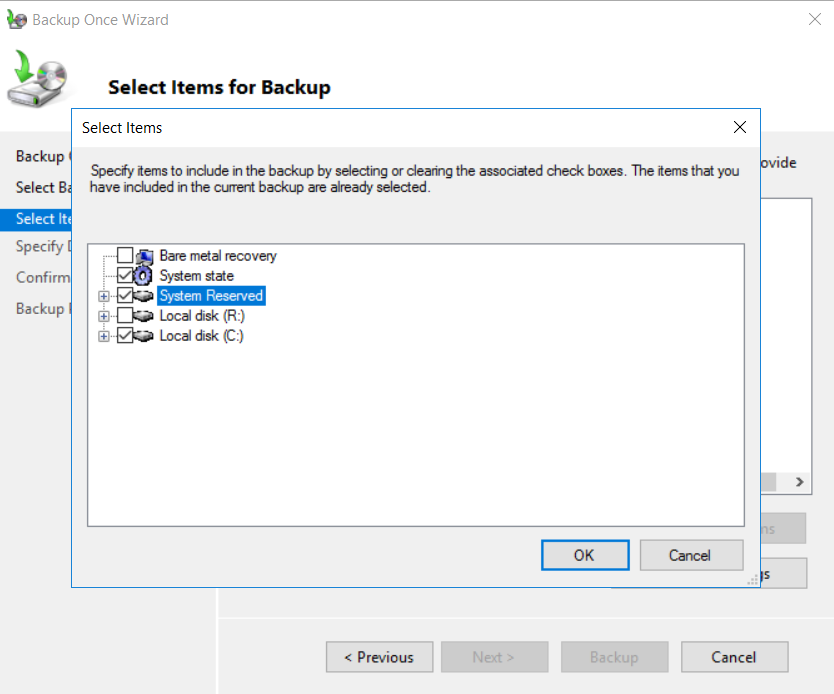
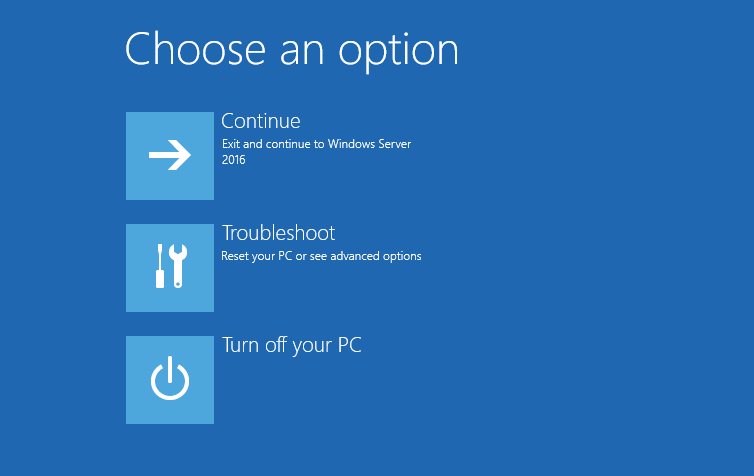
On the DC04, boot from Windows Server DVD and select Troubleshoot. Then follow the steps to restore from backup.
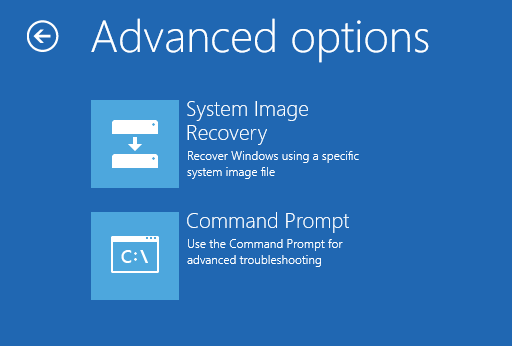
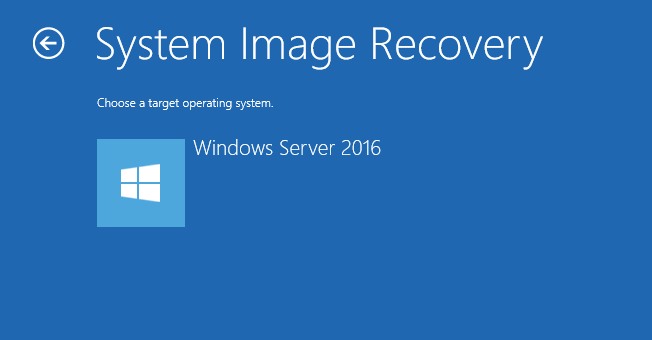
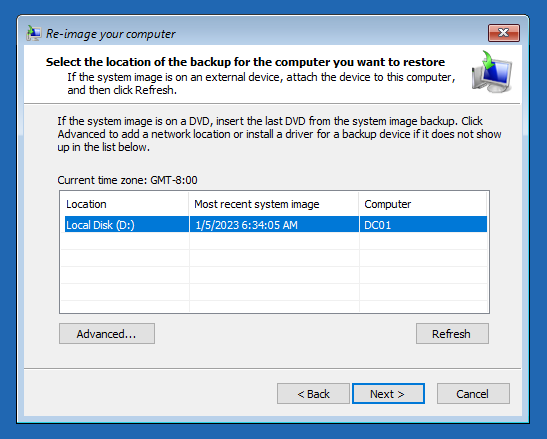
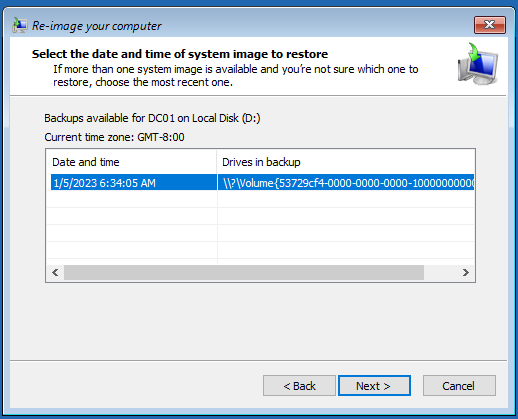
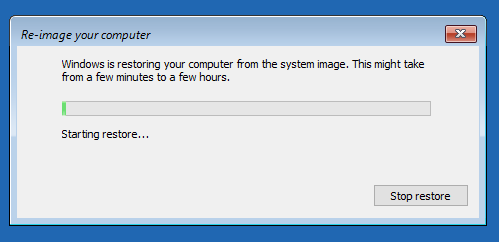
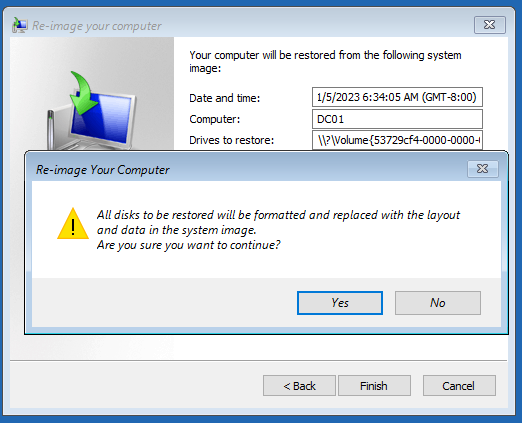
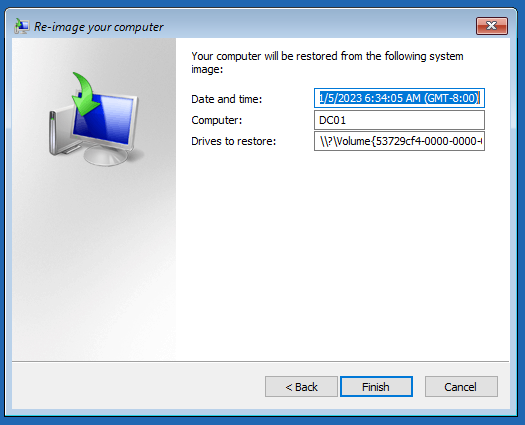
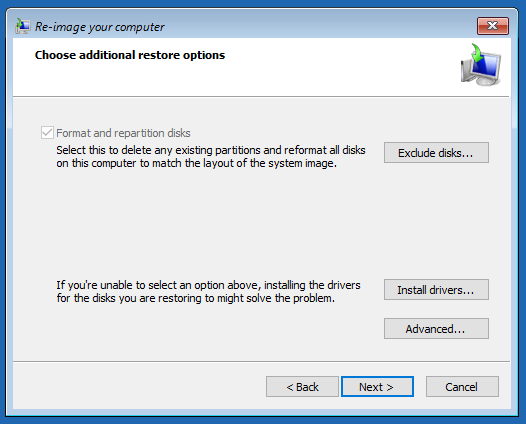
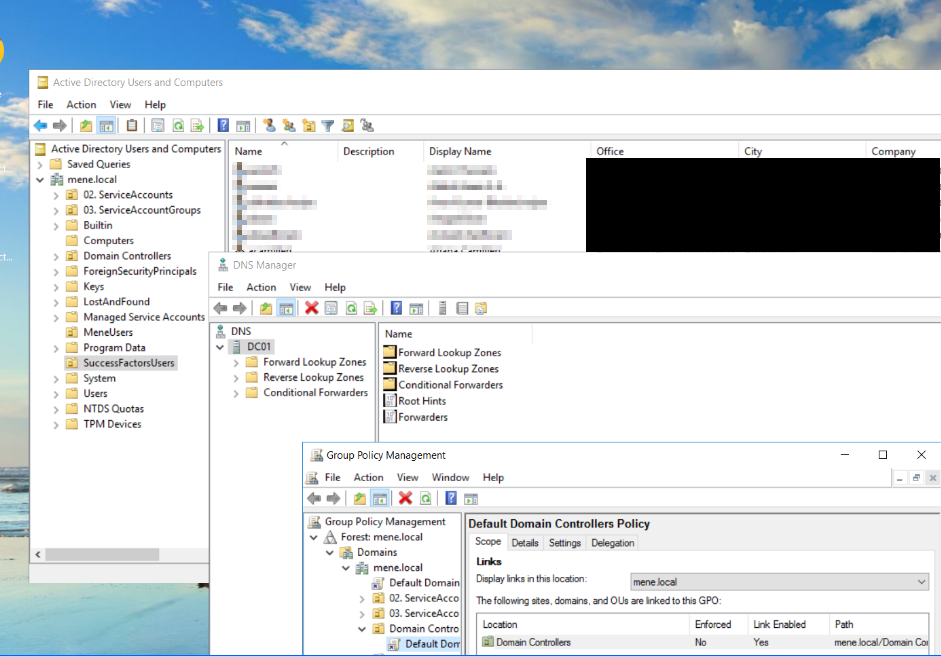
After finishing the restoration process we can confirm that the server and AD related tools have been properly restored.
Conclusion: Restoring system state, reserved and drive where SYSVOL exists works.
 Marius Ene