
Overview
In Active Directory Group Policy you can import additional group policy setting to manage other applications, like SCCM, SCOM, Office, OneDrive, etc. To do so, you need to import some GPO templates (.adm and .admx extensions). If you haven’t created a Central Store for your templates, those settings will only be available on that one domain controller where you imported it. “Central Store” is just a fancy name for storing the templates in a specific SYSVOL folder basically.
How to do it
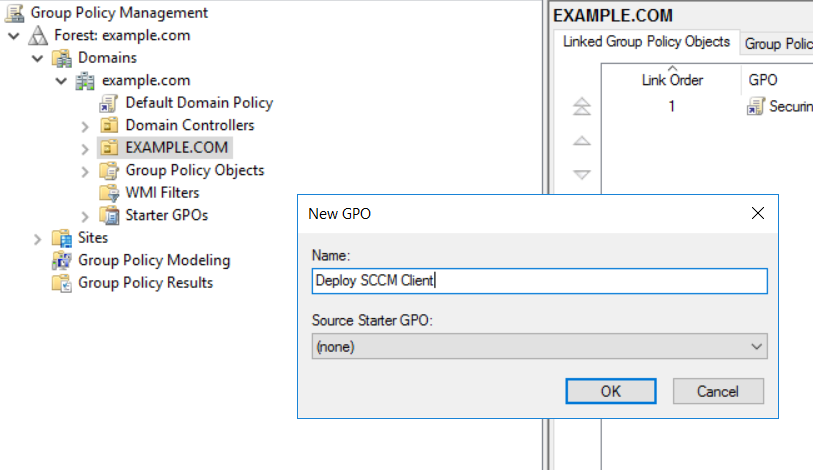
One way to do it is to create a new GPO and link it to an OU.

In my case I wanted to manage some specific SCCM client settings and there are some templates for this available so I wanted to also create the GPO central store for it.
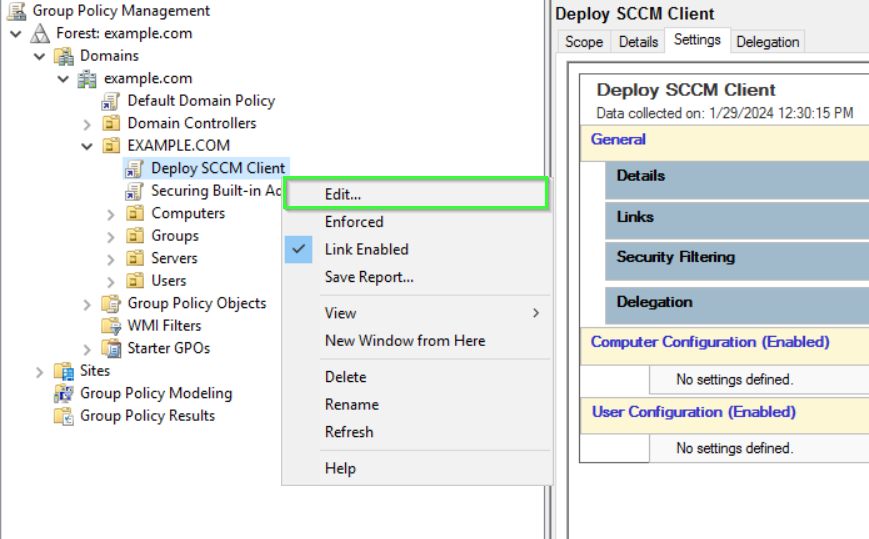
Click Edit to access the editor.
Navigate to the Computer Configuration \ Administrative Templates and expand the view.

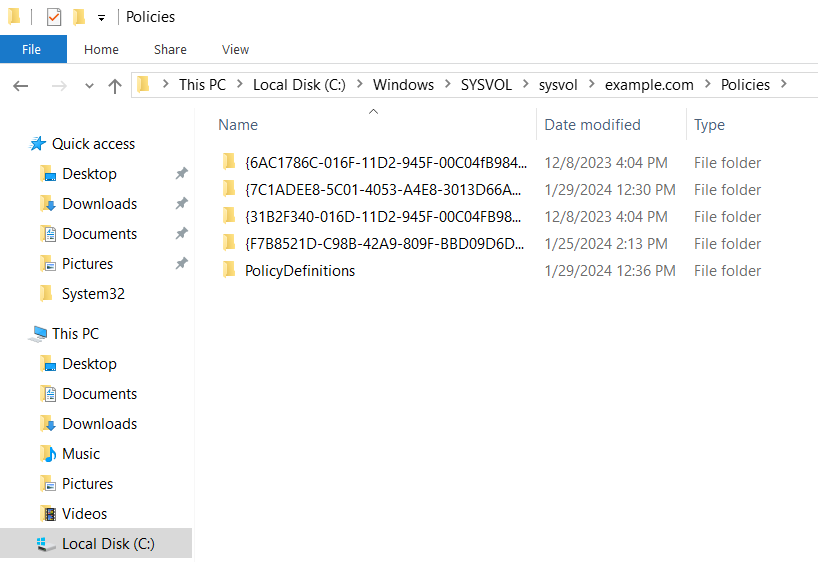
You will need to create a new folder in SYSVOL called PolicyDefinitions. If you try to create it in the UNC path (\\domain\SYSVOL) you might not be able to do it so go through the local path from your local Windows drive as you can see in the next screenshot.
Now re-open the Group Policy Management Console and expand the Administrative Templates container. You should see that it’s now loaded from the central store.
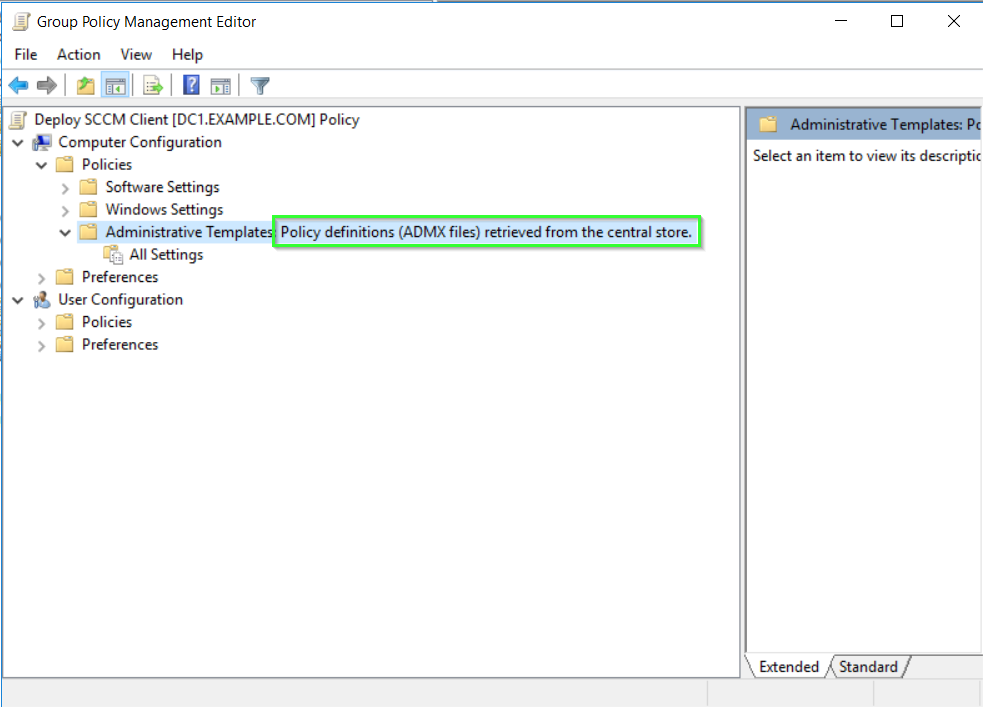
However, at this point if you expand the container, it will be empty because it doesn’t have any templates available. So the next step is to download it from Microsoft. See the links at the end to see what templates can be downloaded and from where.
Download the .msi package and install it locally.
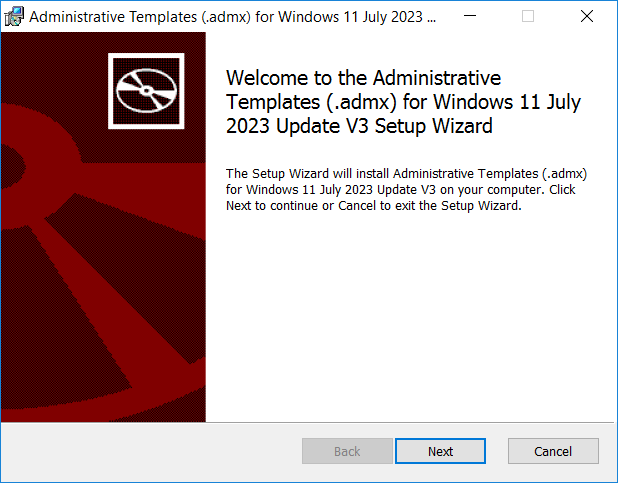
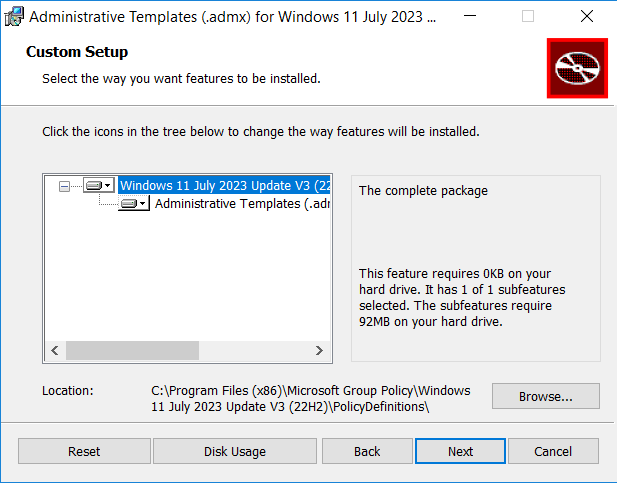
Open the location where the templates are unpacked and copy them over to you new PolicyDefinitions folder in SYSVOL.
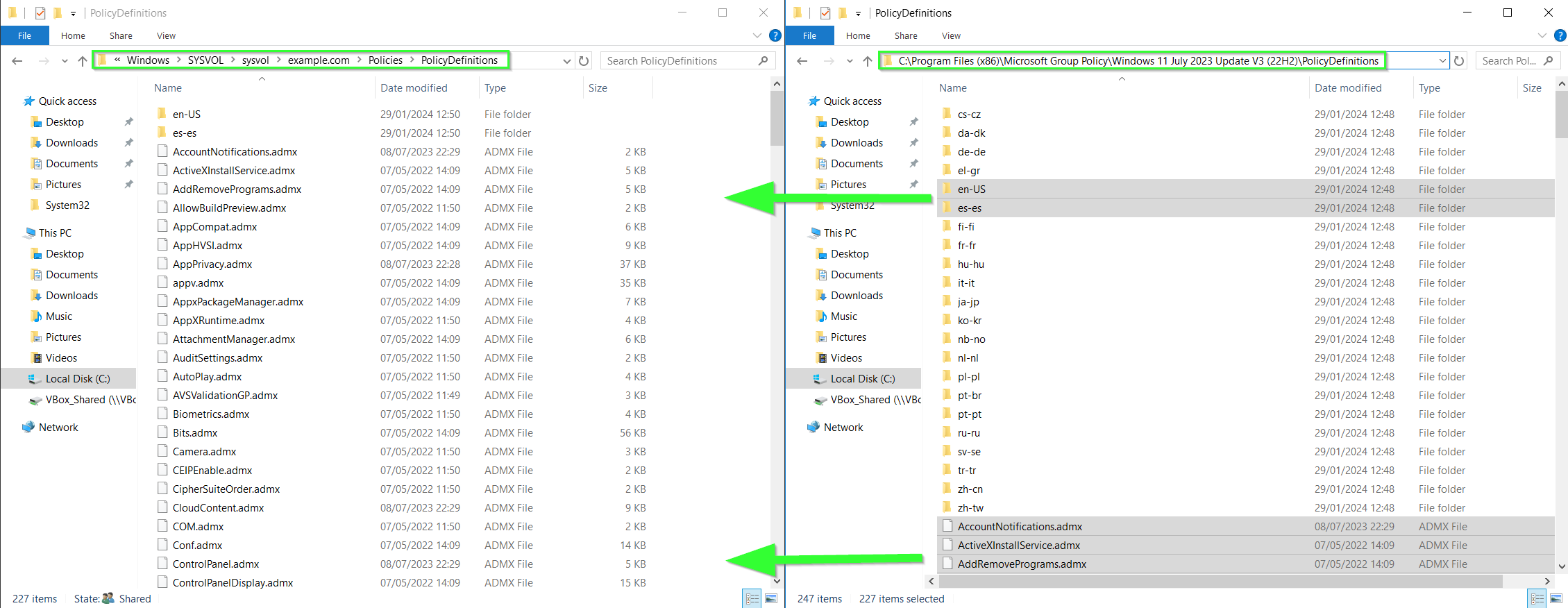
You should now see the settings under the

This is how you configure the central store for Group Policy.
Online references:
How to create the Central Store for Group Policy Administrative Template files in Windows Vista
Links to download the Administrative Templates files based on the operating system version
- Administrative Templates (.admx) for Windows 11 2022 Update (22H2) – v3.0
- Administrative Templates (.admx) for Windows 11 2022 Update (22H2)
- Administrative Templates (.admx) for Windows 11 October 2021 Update (21H2)
- Administrative Templates (.admx) for Windows 10 2022 Update (22H2)
- Administrative Templates (.admx) for Windows 10 November 2021 Update (21H2) – v2.0
- Administrative Templates (.admx) for Windows 10 November 2021 Update (21H2)
- Administrative Templates (.admx) for Windows 10 May 2021 Update (21H1)
- Administrative Templates (.admx) for Windows 10 October 2020 Update (20H2) – v2.0
- Administrative Templates (.admx) for Windows 10 May 2020 Update (2004)
- Administrative Templates (.admx) for Windows 10 November 2019 Update (1909)
- Administrative Templates (.admx) for Windows 10 May 2019 Update (1903)
- Administrative Templates (.admx) for Windows 10 October 2018 Update (1809)
- Administrative Templates (.admx) for Windows 10, version 1803 (April 2018 Update)
- Administrative Templates (.admx) for Windows 10, version 1709 (Fall Creators Update)
- Administrative Templates (.admx) for Windows 10, version 1703 (Creators Update)
- Administrative Templates (.admx) for Windows 10, version 1607 and Windows Server 2016
- Administrative Templates (.admx) for Windows 10 and Windows 10, version 1511
- Administrative Templates (.admx) for Windows 8.1 Update and Windows Server 2012 R2 Update
- Administrative Templates (.admx) for Windows 8.1 and Windows Server 2012 R2
To view ADMX spreadsheets of the new settings that are available in later operating system versions, see the following spreadsheets:
 Marius Ene