
Table of contents
Overview
There are many ways to push the SCCM agent to hosts but I wanted to test and use the GPO method. Microsoft provides guidance (HERE) how this can be achieved. The following is mentioned:
Use the Windows Installer package CCMSetup.msi for Group Policy-based installations. This file is found in the
<ConfigMgr installation directory>\bin\i386folder on the site server. You can’t add properties to this file to change installation behavior.Important: You must have administrator permissions to access the client installation files.
- If you’ve extended the Active Directory schema for Configuration Manager, and you selected the domain on the Publishing tab of the Site Properties dialog box, client computers automatically search Active Directory Domain Services for installation properties. For more information, see About client installation properties published to Active Directory Domain Services.
- If you haven’t extended the Active Directory schema, see the section on provisioning client installation properties for information about storing installation properties in the Windows registry of computers. The client uses these installation properties when it installs.
Below I will attempt to perform the second case, where I haven’t extended the Active Directory schema.
Implementation
SCCM ADM templates import
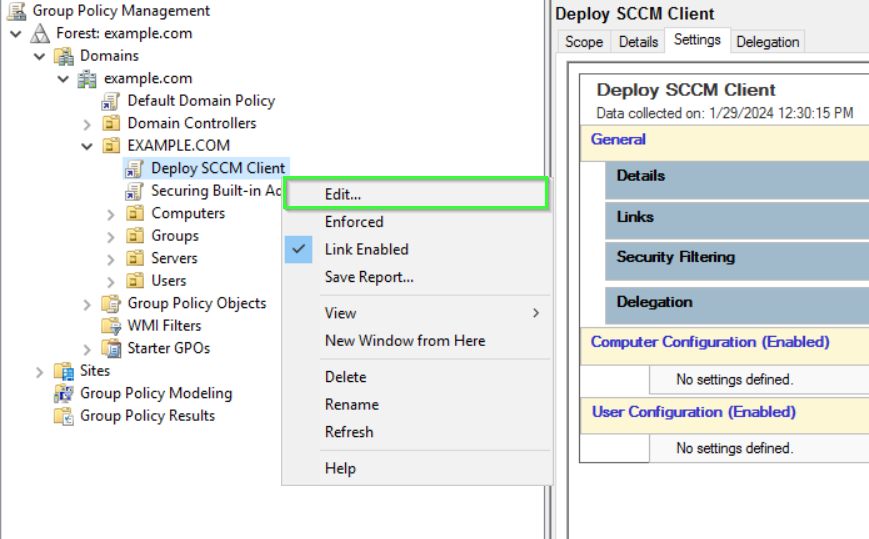
Create a new GPO and link it to an OU.

Click Edit.
Next, you can import the SCCM templates.
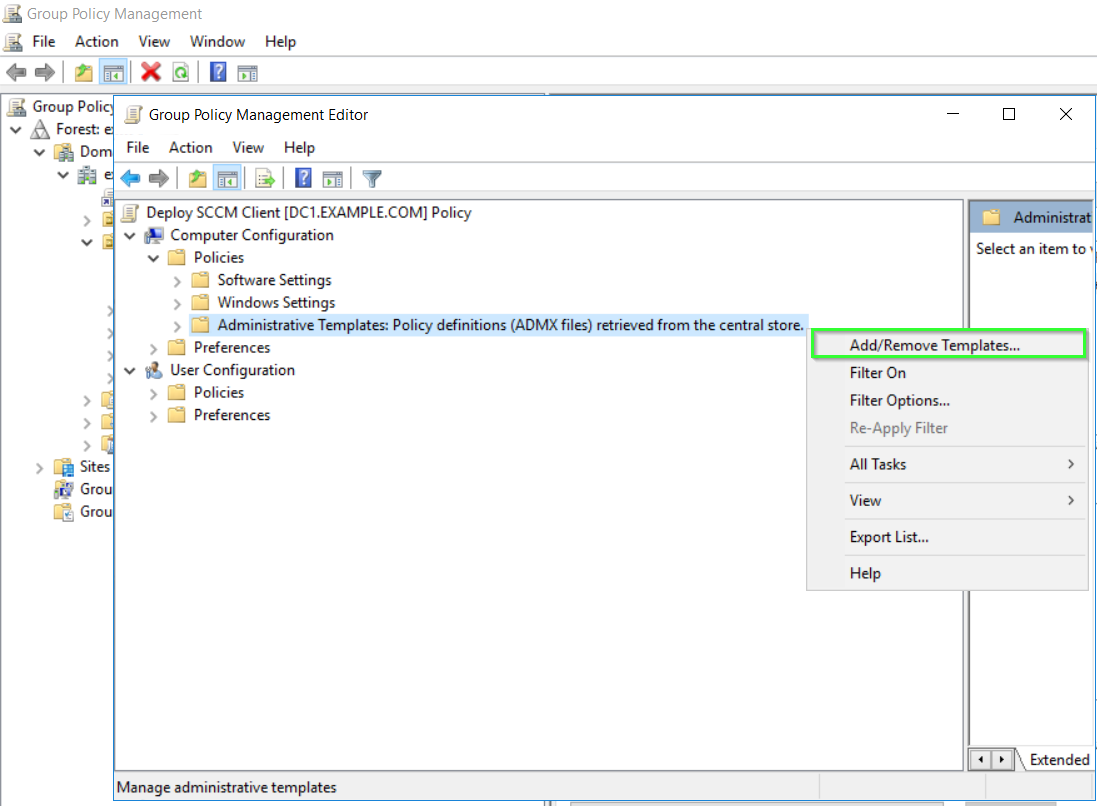
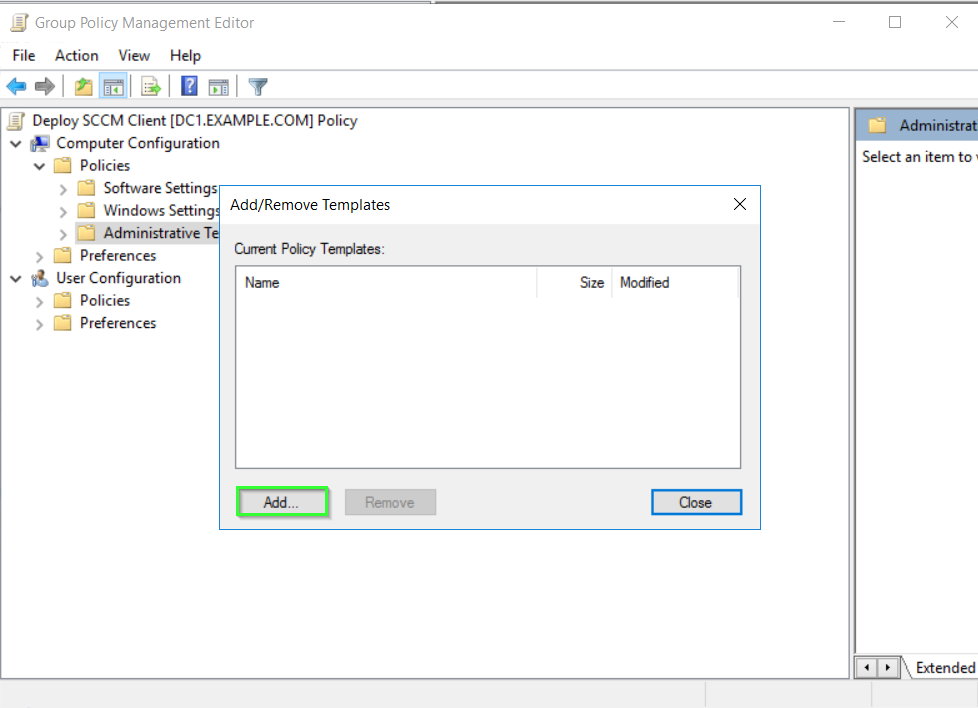
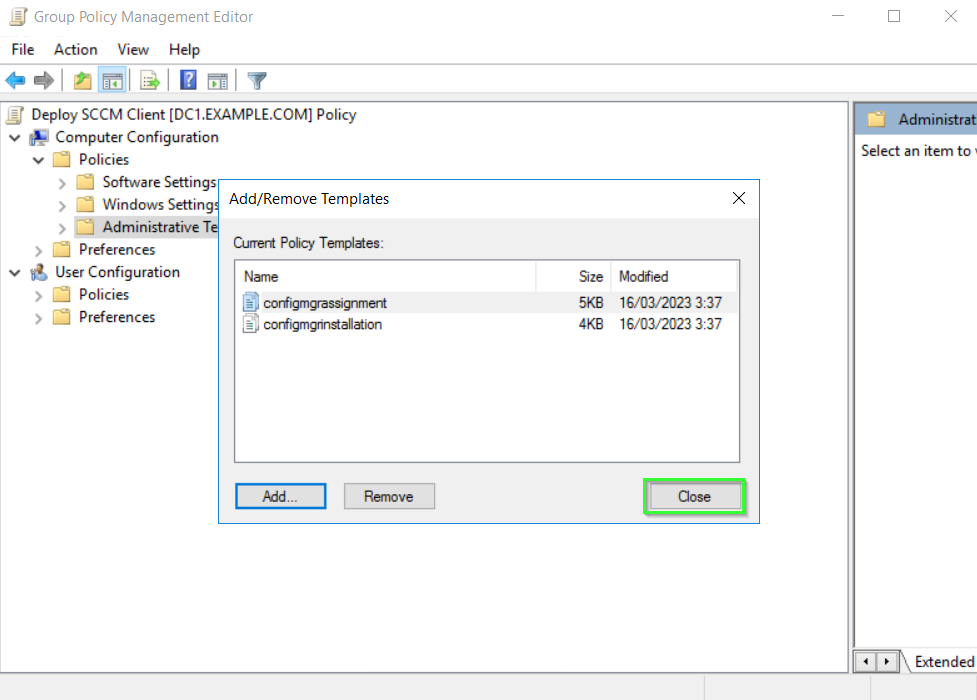
Add the two templates, “configmgrassignment.adm” and “configmgrinstallation.adm” and then Close. These templates are found usually under Program Files\Microsoft Configuration Manager\tools\ConfigMgrADMTemplates or on the SCCM installation media in SMSSETUP\TOOLS\ConfigMgrADMTemplates
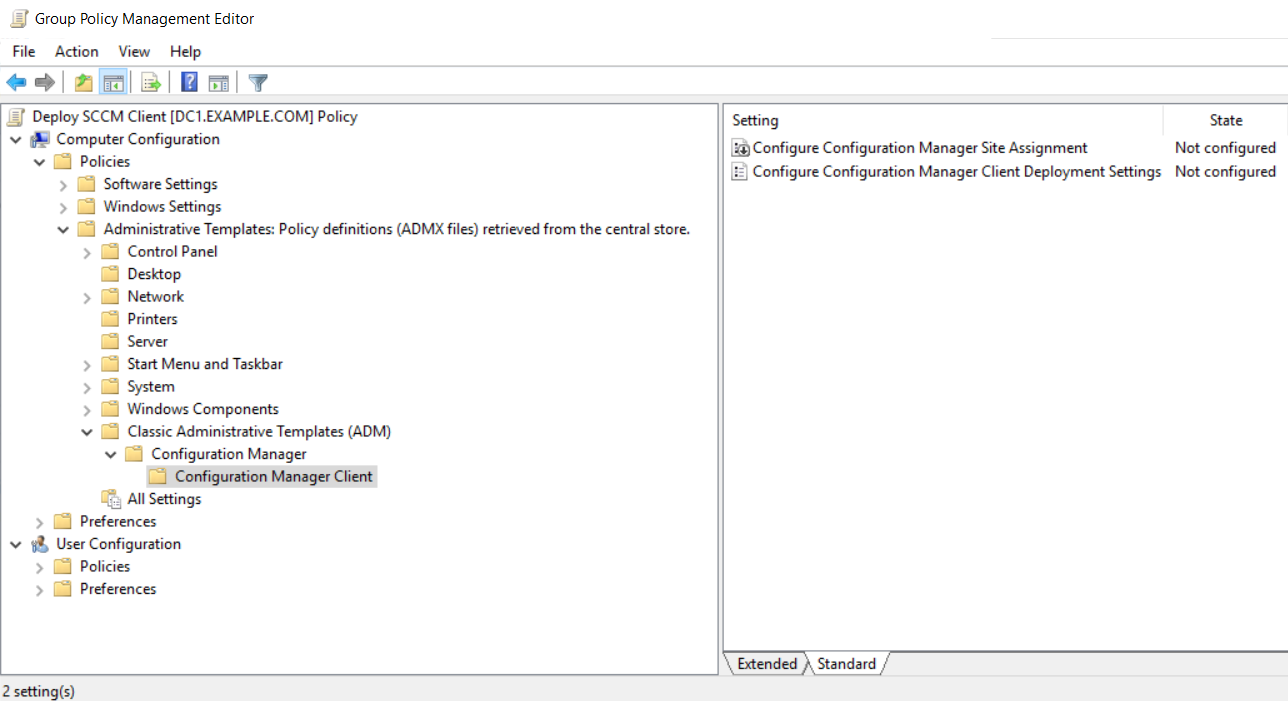
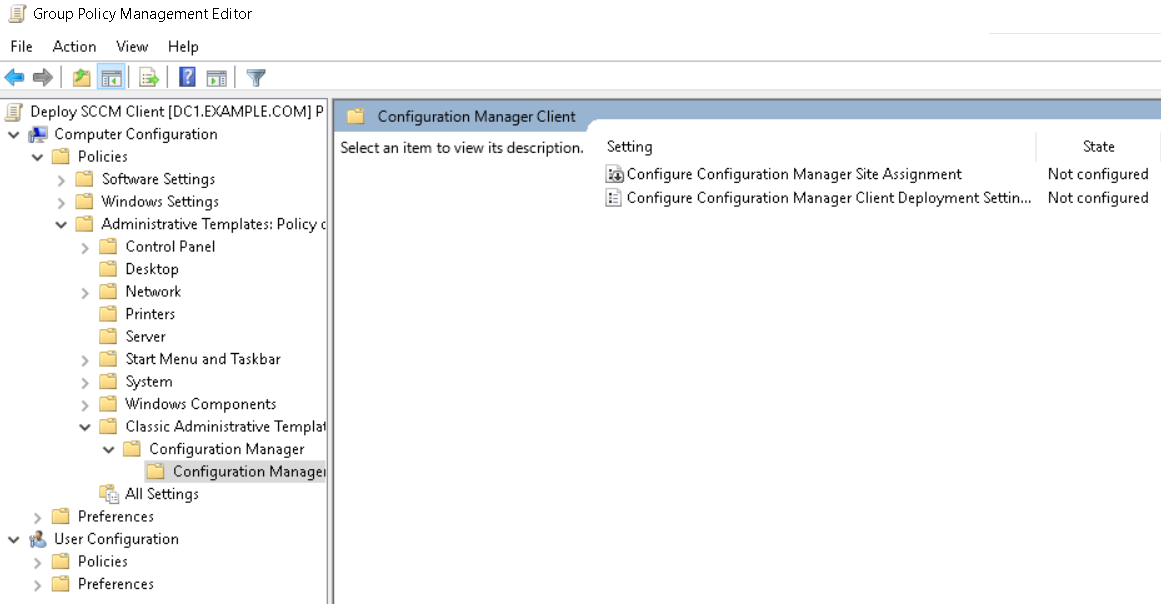
You can now find them under Computer\Policies\Classic Administrative templates (ADM)\Configuration Manager\Configuration Manager Client
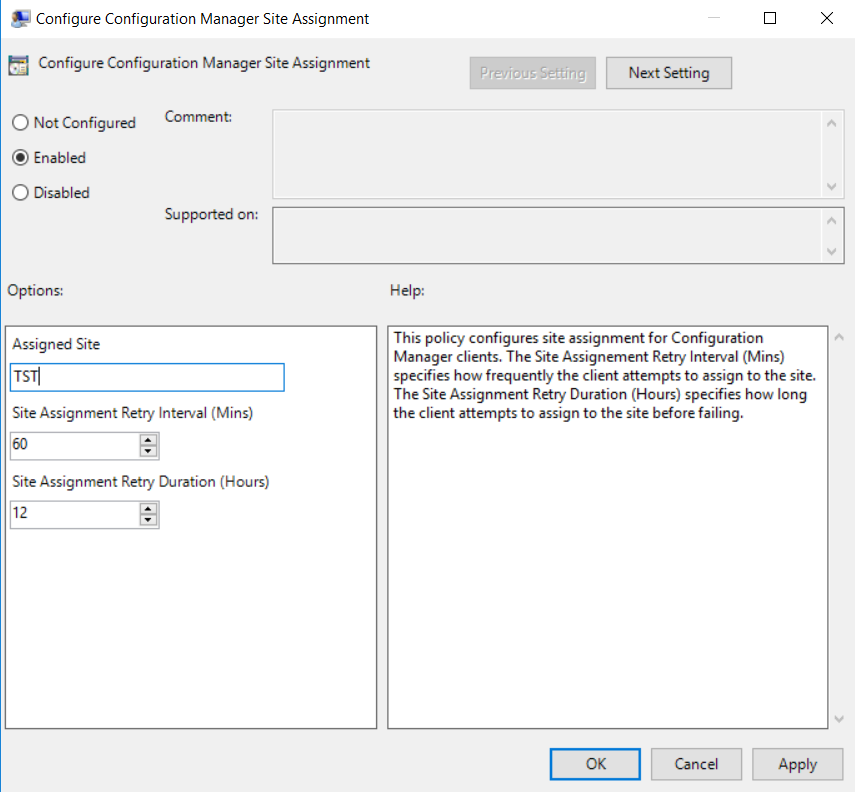
For the Configure Configuration Manager Site Assignment settings, you select enable and populate the site code.
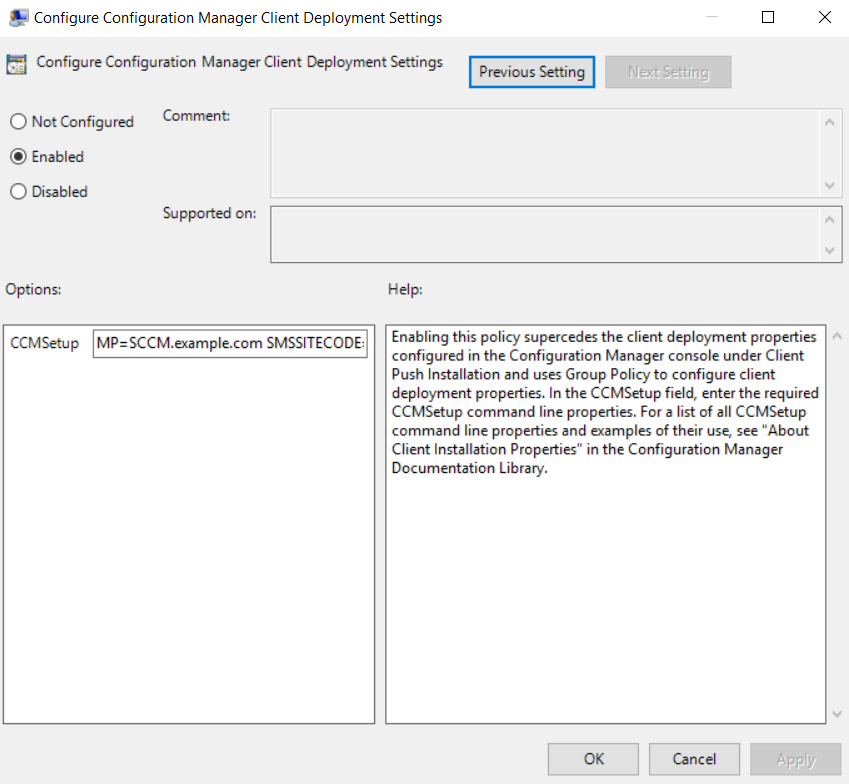
For the Configure Configuration Manager Client Deployment settings you need to set the command line used to install the client. For example, in my case its:
MP=SCCM.example.com SMSSITECODE=TST FSP=SCCM.example.com
Next we need to configure the software installation settings in the GPO.
GPO Software Installation settings
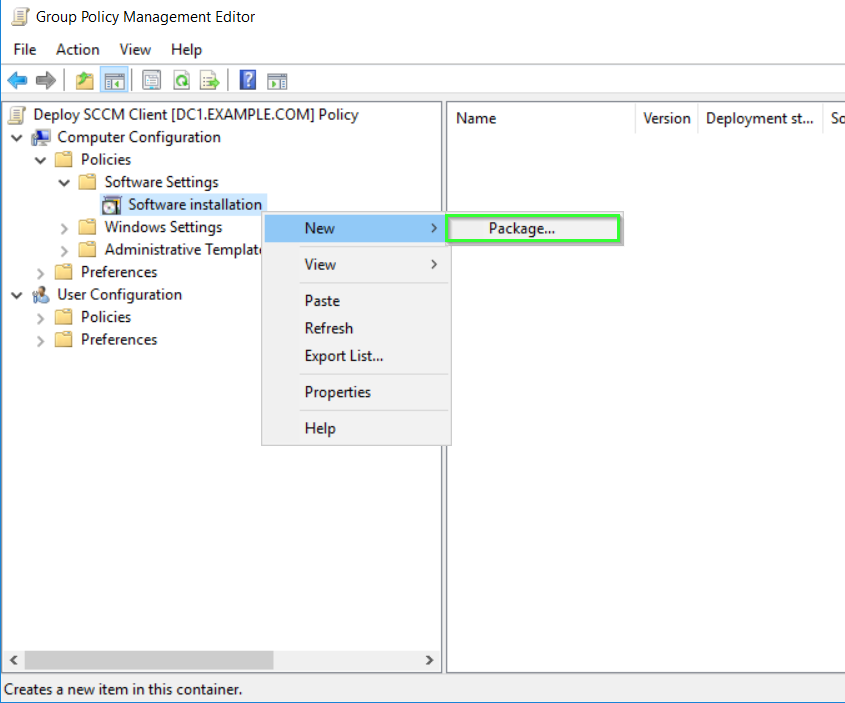
Navigate to Computer Configuration\Policies\Software Installation and right click, select New, Package.
The ccmsetup.msi package is in C:\Program Files\Microsoft Configuration Manager\bin\i386. Copy it in a secure location and make sure it is shared with Everyone with Read permissions. Also check that in the Security tab Domain Computers have the related read permissions.

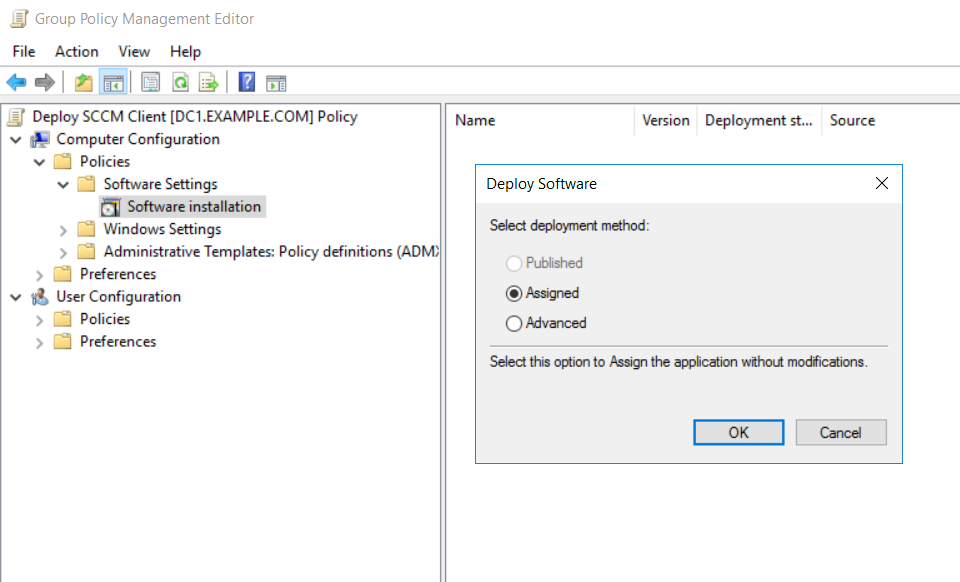
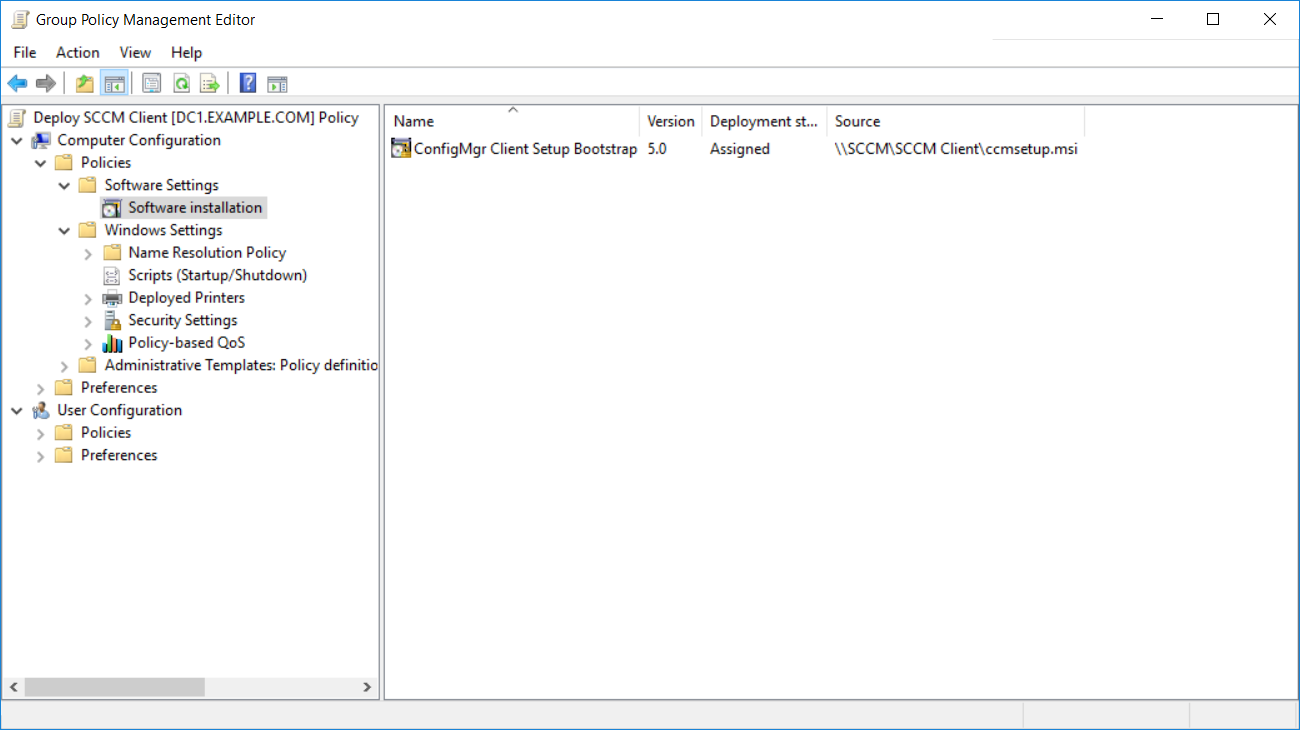
You can close the Group Policy Editor.
On one of the clients (to which the GPO applies) you can run a gpupdate /force to apply the new configuration.
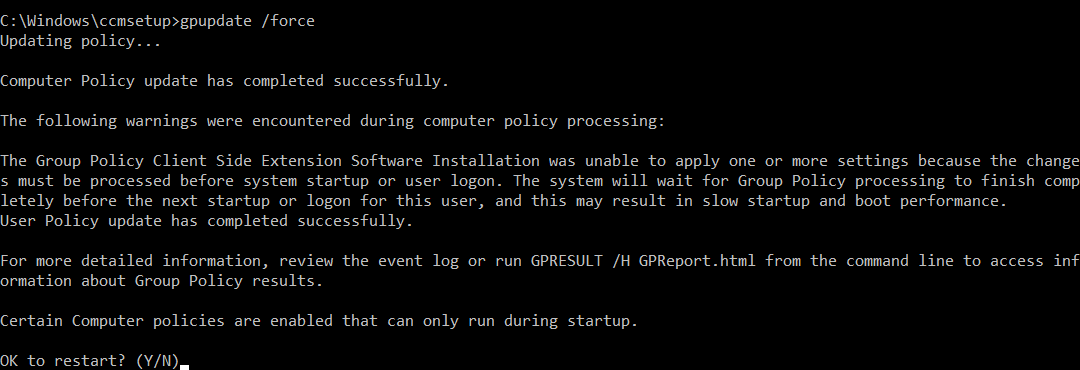
This message basically indicates that you should restart the machine to ensure that the configuration gets applied. Type Y to restart the client.
After restart you should notice that it takes longer to startup the client but its expected.

Troubleshooting
If you need to troubleshoot the software installation from the GPO, open the registry editor and navigate to HKEY_LOCAL_MACHINE\SOFTWARE\Microsoft\Windows NT\CurrentVersion
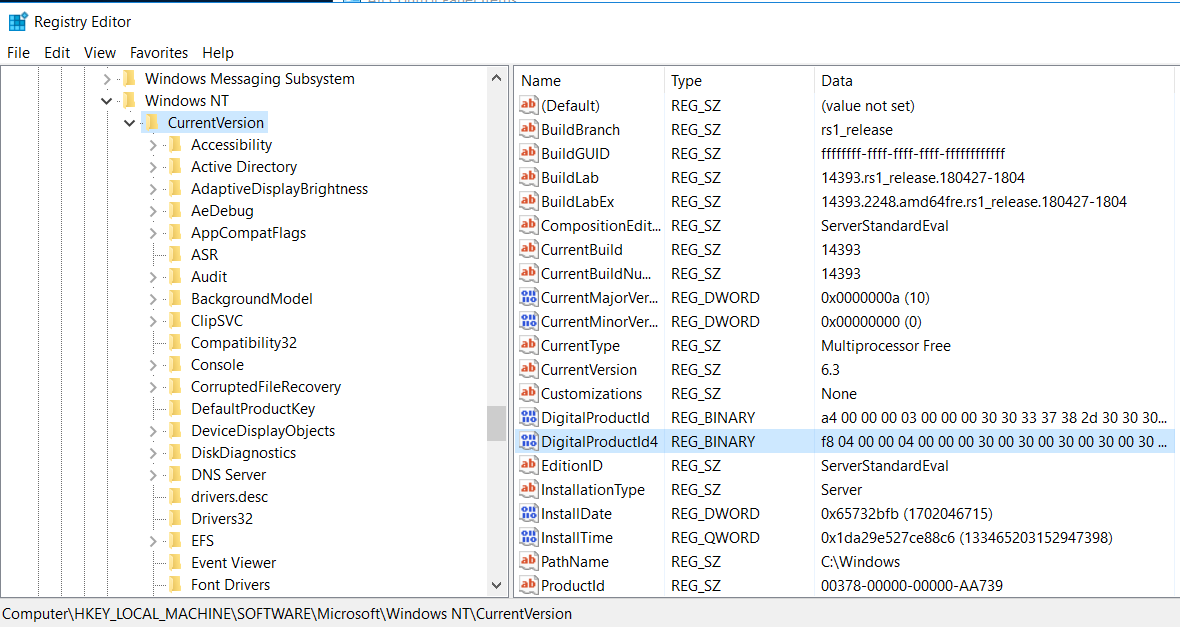
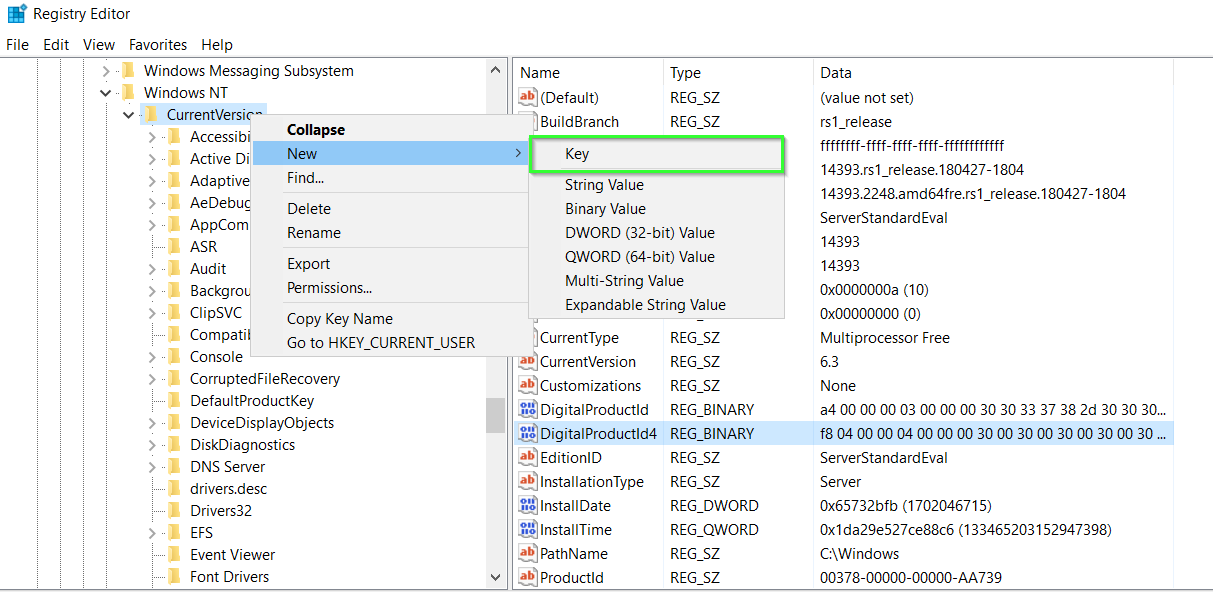
Look for a Diagnostics key. If there isn’t one, you can create it.
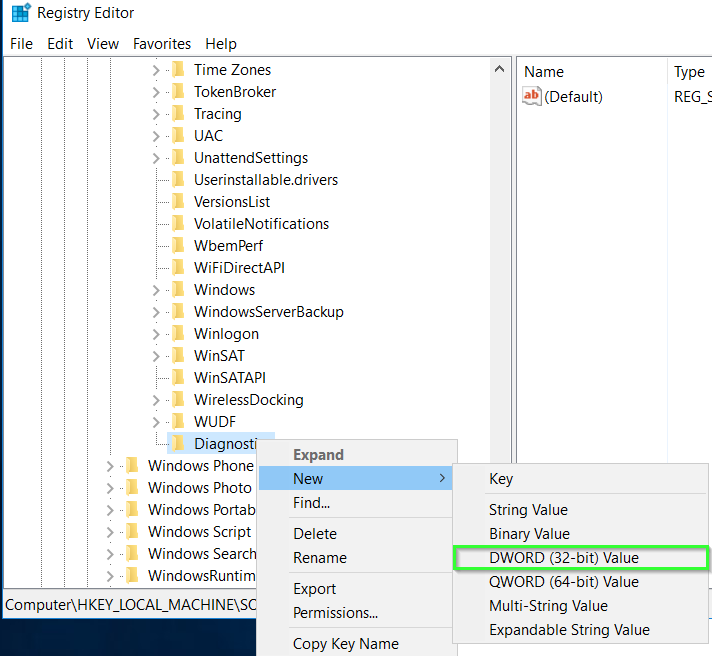
After that you can create inside a new DWORD with a value of AppMgmtDebugLevel with a hex value of 4b.
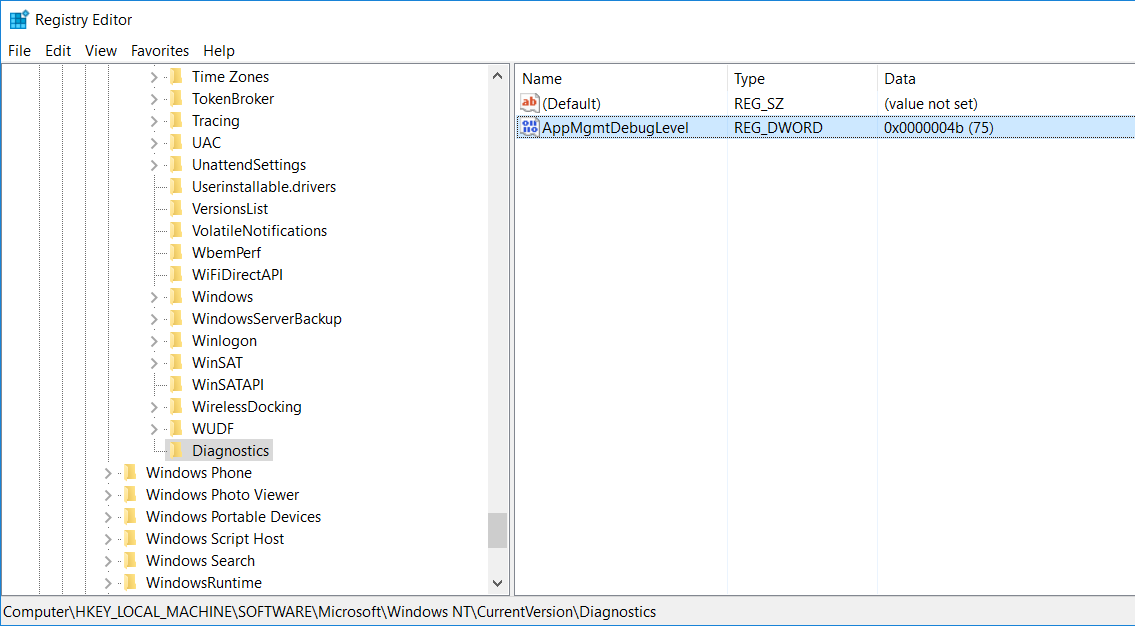
A log file named Appmgmt.log is created when Group Policy processing occurs. The Appmgmt.log file is located in the %SystemRoot%\Debug\UserMode folder on the computer where the AppMgmtDebugLevel registry value is enabled.
Note: If the ‘UserMode‘ folder does not exist in %SystemRoot%\Debug, you need to create it manually.

Below is an example of the content of the log file:
Calling the Windows Installer to install application ConfigMgr Client Setup Bootstrap from policy Deploy SCCM Client.The install of application ConfigMgr Client Setup Bootstrap from policy Deploy SCCM Client succeeded.Policy Logging for Software Management is attempting to log application ConfigMgr Client Setup Bootstrap from policy Deploy SCCM Client.Changes to software installation settings were applied successfully.Software installation extension returning with final error code 0.Software installation extension has been called for background policy refresh01-30 11:02:14:447 Software installation extension has been called for background policy refreshThe following policies are to be applied, flags are 91. Deploy SCCM Client (unique identifier {7C1ADEE8-5C01-4053-A4E8-3013D66A7F12}) System volume path = \\example.com\SysVol\example.com\Policies\{7C1ADEE8-5C01-4053-A4E8-3013D66A7F12}\Machine Active Directory path = LDAP://CN=Machine,cn={7C1ADEE8-5C01-4053-A4E8-3013D66A7F12},cn=policies,cn=system,DC=example,DC=comSet the Active Directory path to LDAP://CN=Class Store,CN=Machine,cn={7C1ADEE8-5C01-4053-A4E8-3013D66A7F12},cn=policies,cn=system,DC=example,DC=com;.Policy has not changed. Only assigned applications will be advertised.Enumerating the managed applications which are currently applied to this user.The following 1 managed applications are currently applied to this user. ConfigMgr Client Setup Bootstrap from policy Deploy SCCM Client with state 509 and assign count 1.Found assigned application ConfigMgr Client Setup Bootstrap from policy Deploy SCCM Client in the registry.Found 1 applications locally that are not included in the set of applications from Active Directory.Software installation extension returning with final error code 0.While this step went fine, if I’d check the ccmsetup.log I would get an error:
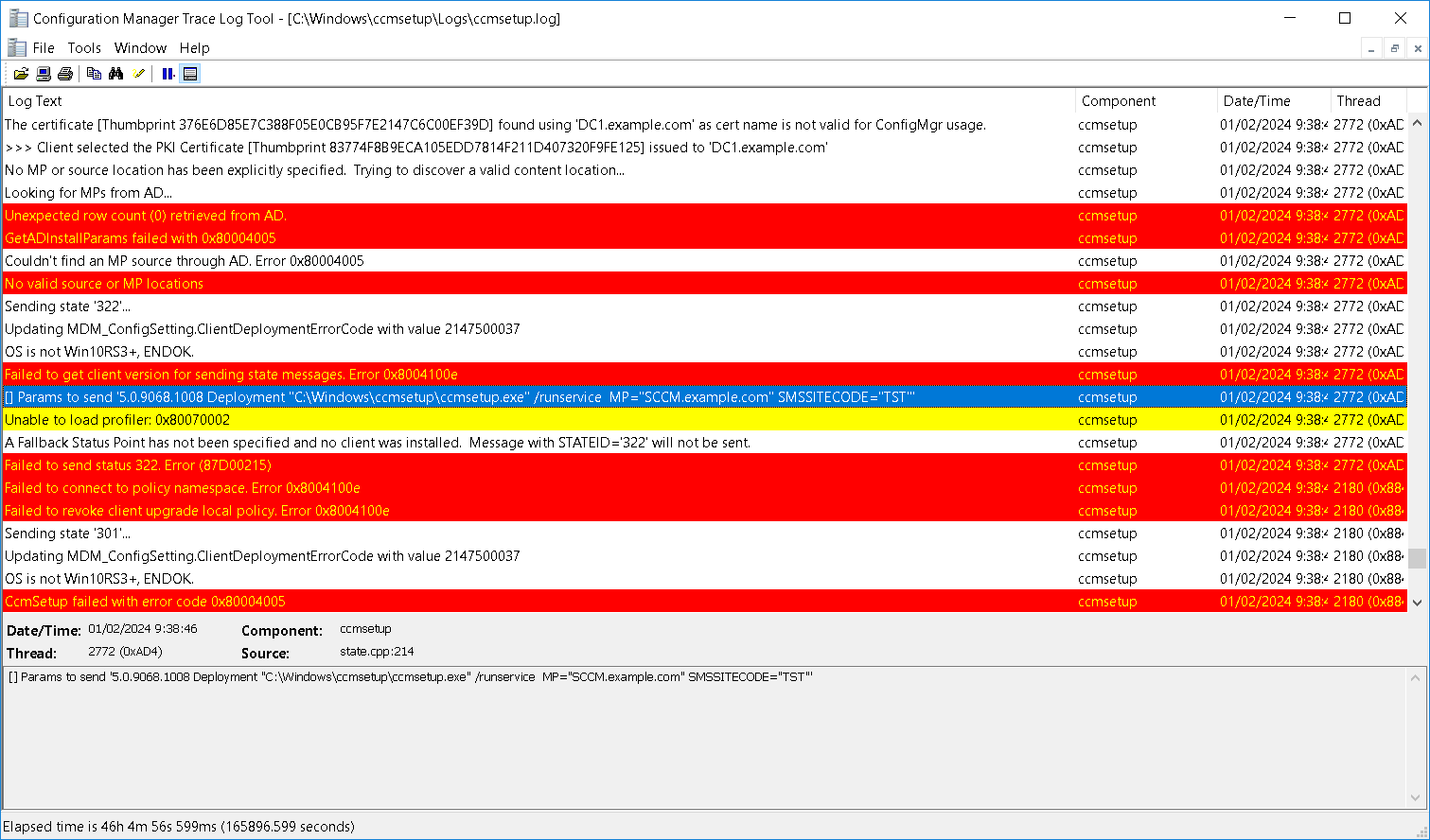
<![LOG[No MP or source location has been explicitly specified. Trying to discover a valid content location...]LOG]!><time="11:41:21.149-60" date="01-30-2024" component="ccmsetup" context="" type="1" thread="2784" file="ccmsetup.cpp:5744"><![LOG[Looking for MPs from AD...]LOG]!><time="11:41:21.149-60" date="01-30-2024" component="ccmsetup" context="" type="1" thread="2784" file="ccmsetup.cpp:5752"><![LOG[Unexpected row count (0) retrieved from AD.]LOG]!><time="11:41:21.149-60" date="01-30-2024" component="ccmsetup" context="" type="3" thread="2784" file="lsad.cpp:676"><![LOG[GetADInstallParams failed with 0x80004005]LOG]!><time="11:41:21.149-60" date="01-30-2024" component="ccmsetup" context="" type="3" thread="2784" file="ccmsetup.cpp:280"><![LOG[Couldn't find an MP source through AD. Error 0x80004005]LOG]!><time="11:41:21.149-60" date="01-30-2024" component="ccmsetup" context="" type="1" thread="2784" file="ccmsetup.cpp:5769"><![LOG[No valid source or MP locations]LOG]!><time="11:41:21.149-60" date="01-30-2024" component="ccmsetup" context="" type="3" thread="2784" file="state.h:56"><![LOG[Sending state '322'...]LOG]!><time="11:41:21.149-60" date="01-30-2024" component="ccmsetup" context="" type="1" thread="2784" file="state.cpp:72"><![LOG[Updating MDM_ConfigSetting.ClientDeploymentErrorCode with value 2147500037]LOG]!><time="11:41:21.149-60" date="01-30-2024" component="ccmsetup" context="" type="1" thread="2784" file="ccmcomgmt.cpp:976"><![LOG[OS is not Win10RS3+, ENDOK.]LOG]!><time="11:41:21.149-60" date="01-30-2024" component="ccmsetup" context="" type="1" thread="2784" file="ccmcomgmt.cpp:981"><![LOG[Failed to get client version for sending state messages. Error 0x8004100e]LOG]!><time="11:41:21.183-60" date="01-30-2024" component="ccmsetup" context="" type="2" thread="2784" file="state.cpp:169"><![LOG[[] Params to send '5.0.9068.1008 Deployment "C:\Windows\ccmsetup\ccmsetup.exe" /runservice CCMSETUP.EXE="CCMSetup.exe" MP="SCCM.EXAMPLE.COM" SMSSITECODE="TST"']LOG]!><time="11:41:21.183-60" date="01-30-2024" component="ccmsetup" context="" type="0" thread="2784" file="state.cpp:214"><![LOG[Unable to load profiler: 0x80070002]LOG]!><time="11:41:21.183-60" date="01-30-2024" component="ccmsetup" context="" type="2" thread="2784" file="Logging.cpp:805"><![LOG[A Fallback Status Point has not been specified and no client was installed. Message with STATEID='322' will not be sent.]LOG]!><time="11:41:21.183-60" date="01-30-2024" component="ccmsetup" context="" type="1" thread="2784" file="state.cpp:241"><![LOG[Failed to send status 322. Error (87D00215)]LOG]!><time="11:41:21.183-60" date="01-30-2024" component="ccmsetup" context="" type="3" thread="2784" file="state.cpp:254"><![LOG[Failed to connect to policy namespace. Error 0x8004100e]LOG]!><time="11:41:21.212-60" date="01-30-2024" component="ccmsetup" context="" type="3" thread="2176" file="localpolicy.cpp:391"><![LOG[Failed to revoke client upgrade local policy. Error 0x8004100e]LOG]!><time="11:41:21.212-60" date="01-30-2024" component="ccmsetup" context="" type="3" thread="2176" file="localpolicy.cpp:418"><![LOG[Sending state '301'...]LOG]!><time="11:41:21.212-60" date="01-30-2024" component="ccmsetup" context="" type="1" thread="2176" file="state.cpp:72"><![LOG[Updating MDM_ConfigSetting.ClientDeploymentErrorCode with value 2147500037]LOG]!><time="11:41:21.212-60" date="01-30-2024" component="ccmsetup" context="" type="1" thread="2176" file="ccmcomgmt.cpp:976"><![LOG[OS is not Win10RS3+, ENDOK.]LOG]!><time="11:41:21.212-60" date="01-30-2024" component="ccmsetup" context="" type="1" thread="2176" file="ccmcomgmt.cpp:981"><![LOG[CcmSetup failed with error code 0x80004005]LOG]!><time="11:41:21.212-60" date="01-30-2024" component="ccmsetup" context="" type="1" thread="2176" file="ccmsetup.cpp:11823">NOTE: The above settings unfortunately did not work for me If you managed to get this scenario to work for you without having published the SCCM site information to Active Directory let me know in the comments section.
Workaround
The following are the high-level steps:
- You must extend the Active Directory schema for Configuration Manager in each forest where you will publish site data. Also ensure the System Management container is present.
- You must grant the computer account of each primary site that will publish data full control to the System Management container, and all of its child objects.
If you enable sites to publish to a forest, you must extend the Active Directory schema of that forest for Configuration Manager. So we will do this next:
Extend the schema
To extend the schema for Configuration Manager:
- Use an account that’s a member of the Schema Admins security group.
- Sign in with that account to the schema master domain controller.
Use the extadsch.exe tool
This tool is in the SMSSETUP\BIN\X64 folder on the Configuration Manager installation media or in <Drive>:\Program Files\Microsoft Configuration Manager\cd.latest\SMSSETUP\BIN\X64
Open a command line as Administrator, and run extadsch.exe.
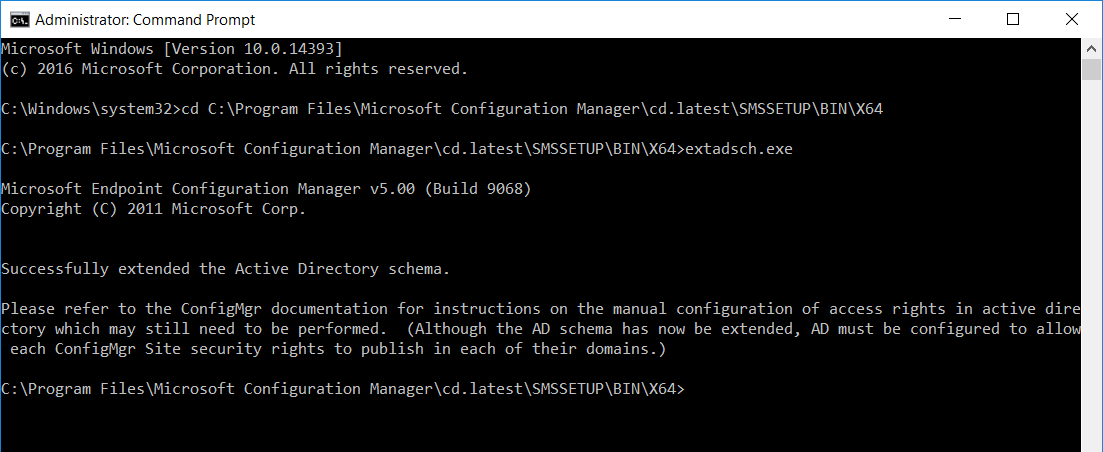
To verify that the schema extension was successful, review extadsch.log in the root of the system drive.
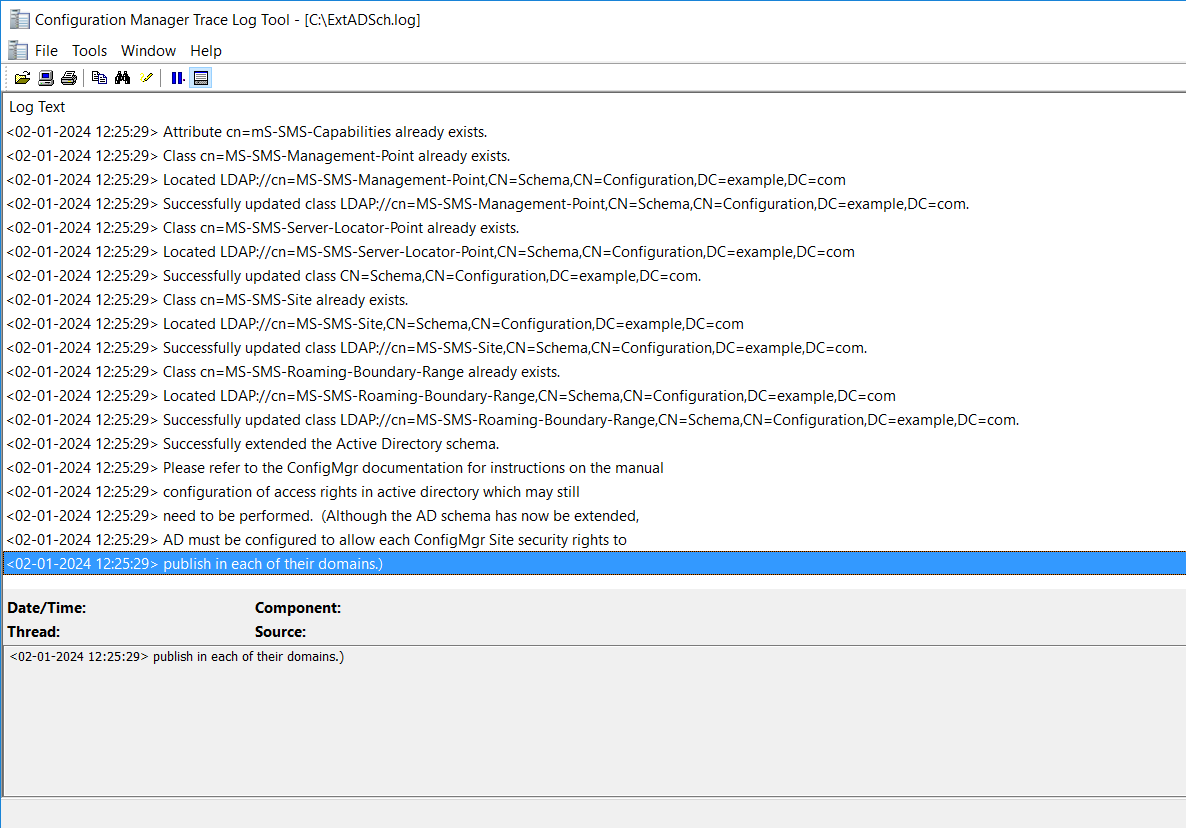
The Active Directory Forest Account must have Full Control permissions to the System container in that forest. So we can do the following:
The System Management container
After you extend the schema, create a container named System Management in Active Directory Domain Services. Create this container once in each domain that has a Configuration site that will publish data to Active Directory. For each container, you need to grant permissions to the computer account of each site server that will publish data to that domain.
- Use an account that has the Create All Child Objects permission on the System container in Active Directory Domain Services.
- Run ADSI Edit (adsiedit.msc), and connect to the site server’s domain.
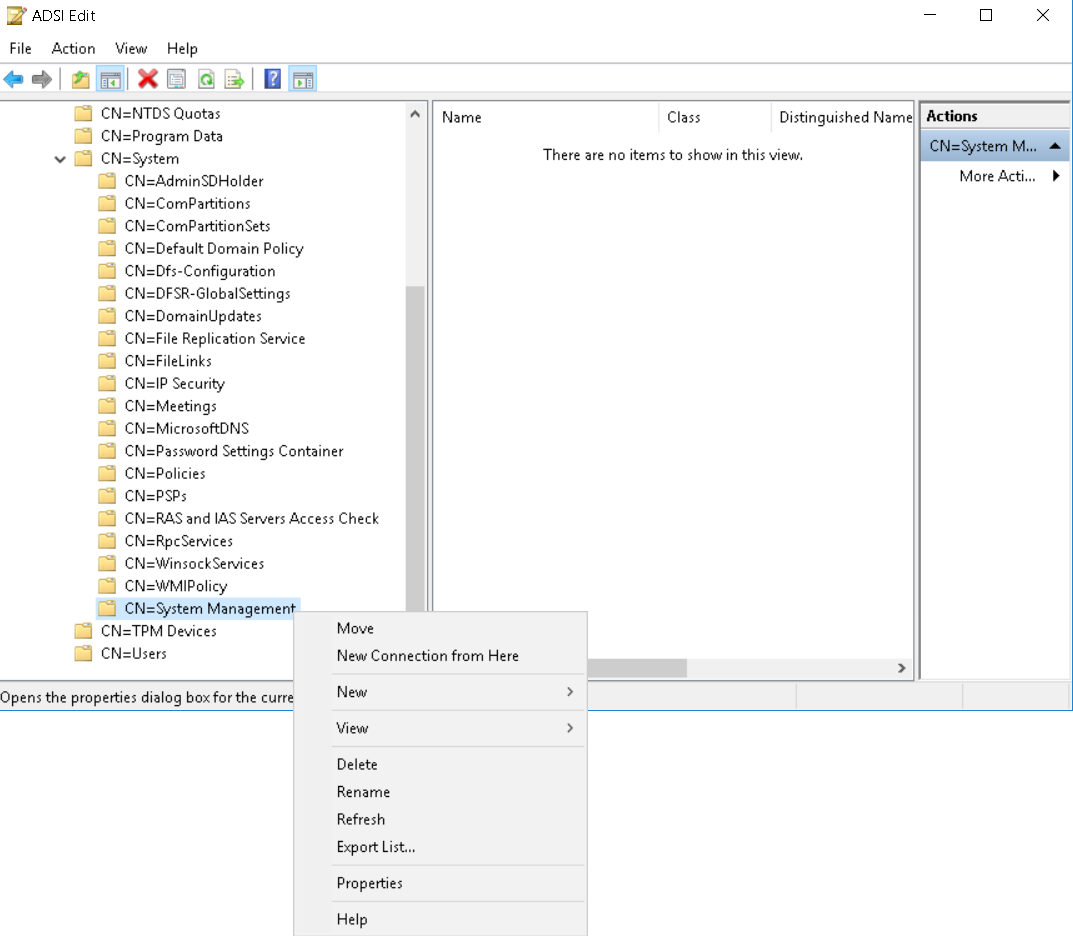
- Create the container:
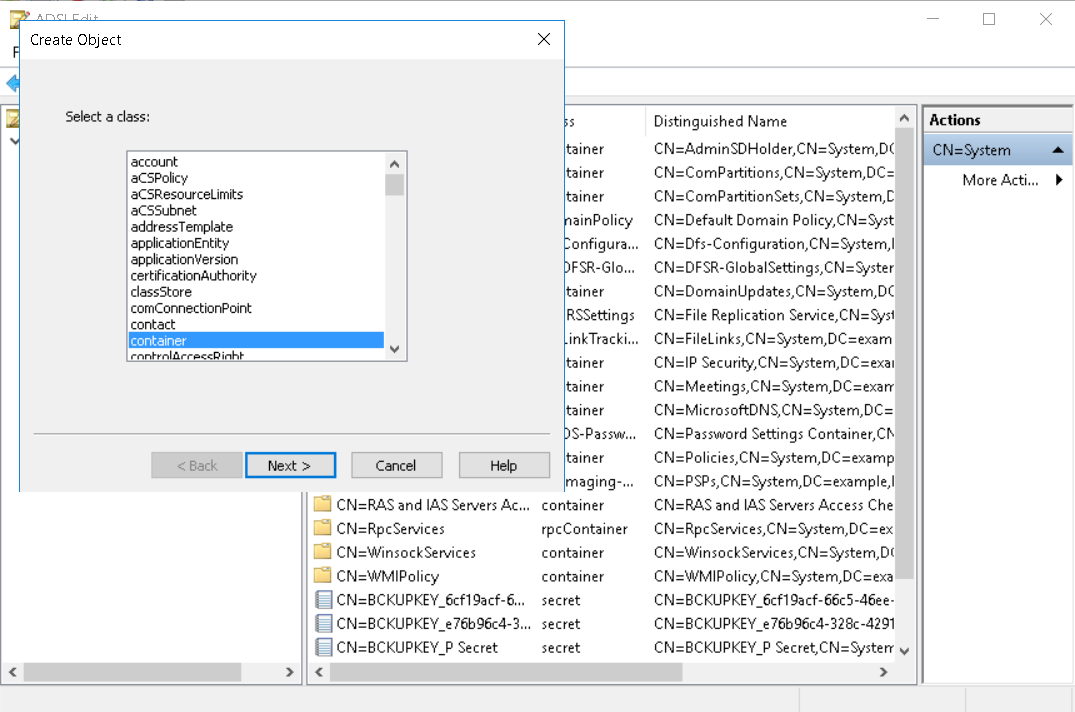
- Expand the fully qualified domain name, and expand the distinguished name. Right-click CN=System, choose New, and then select Object.
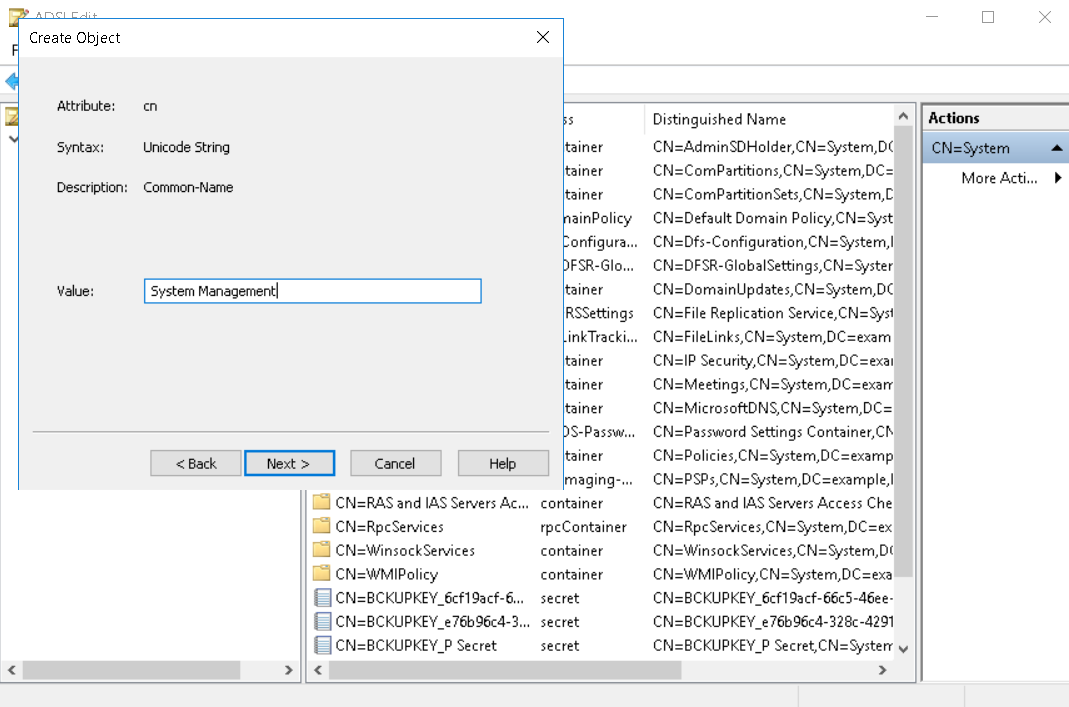
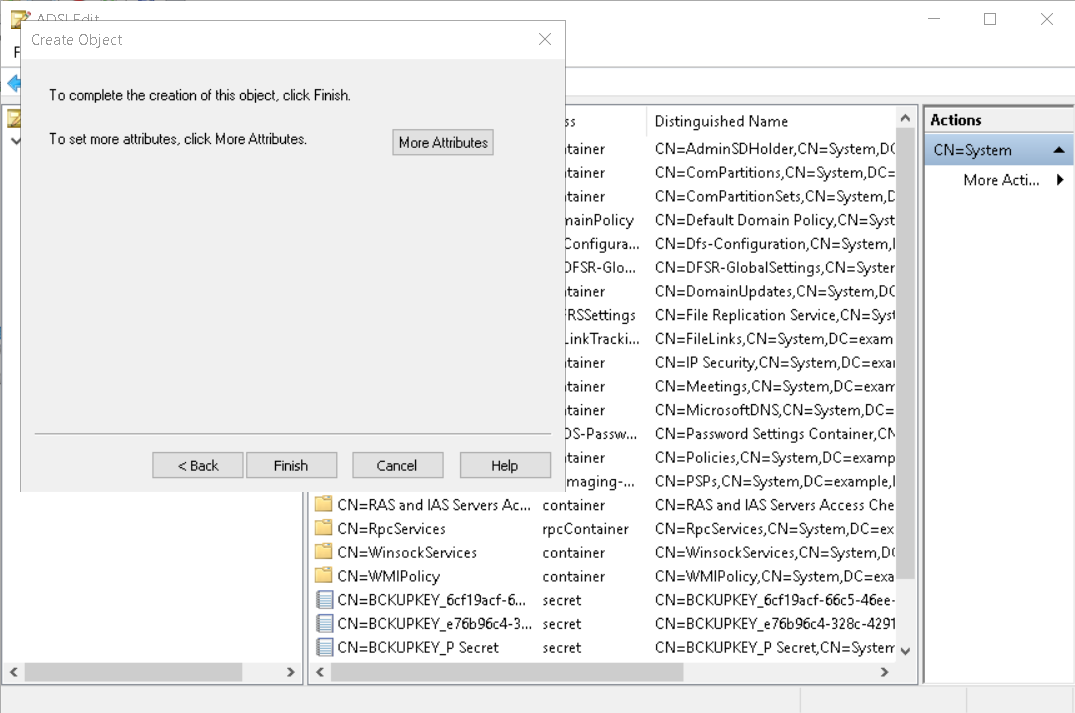
- In the Create Object window, select Container, and then select Next.
- In the Value box, enter
System Management, and then select Next.
- Assign permissions: NoteIf you prefer, you can use other tools like the Active Directory Users and Computers administrative tool (dsa.msc) to add permissions to the container.
- Right-click CN=System Management, and select Properties.
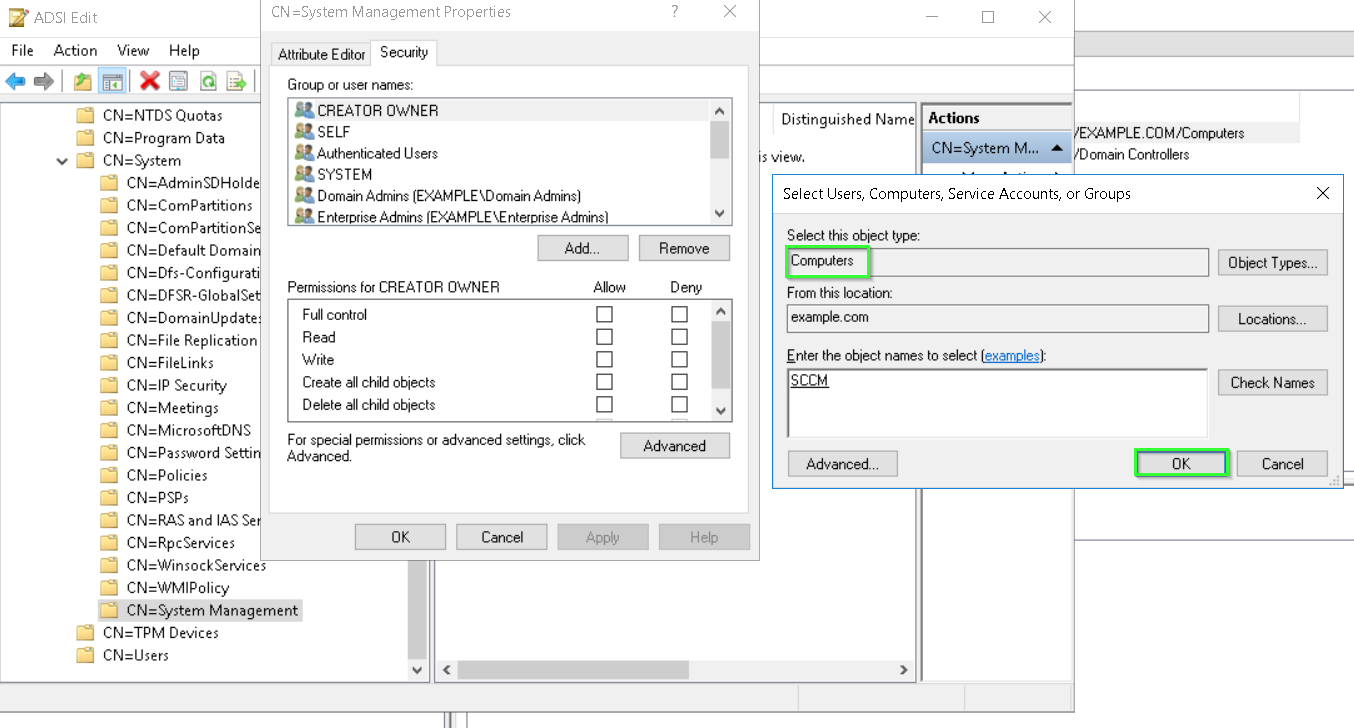
- Switch to the Security tab. Select Add, and then add the site server’s computer account with the Full Control permission. Add the computer account for each Configuration Manager site server in this domain. If you use site server high availability, make sure to include the computer account of the site server in passive mode.
- Select Advanced, select the site server’s computer account, and then select Edit.
- In the Apply onto list, select This object and all descendant objects.
- Select OK to save the configuration.

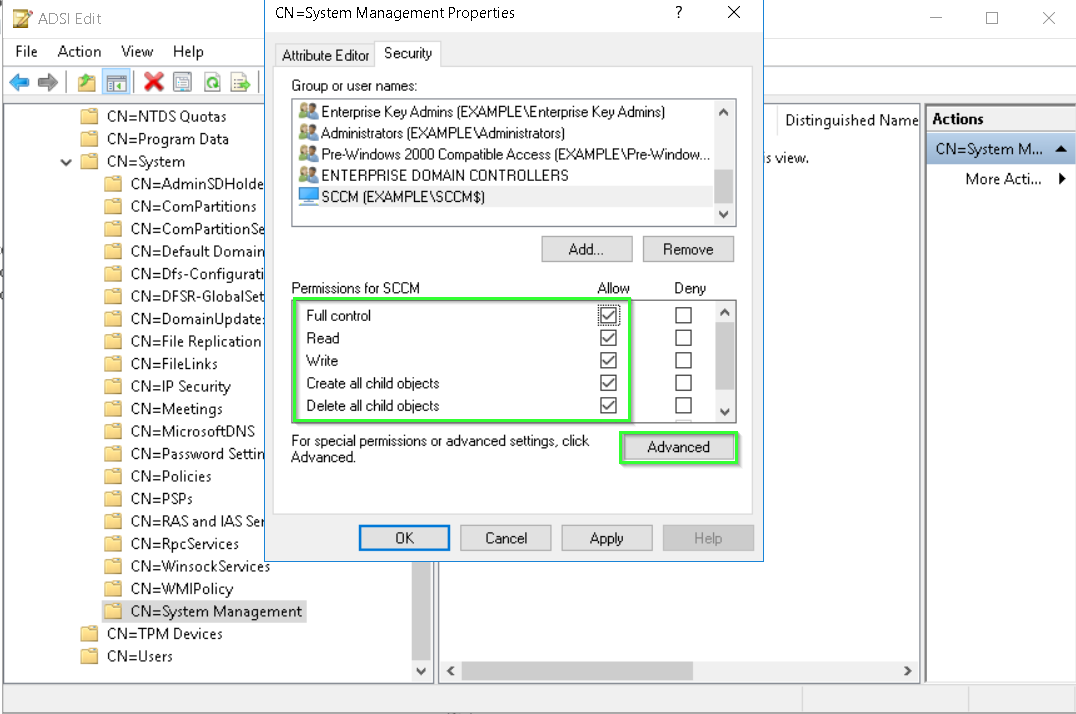
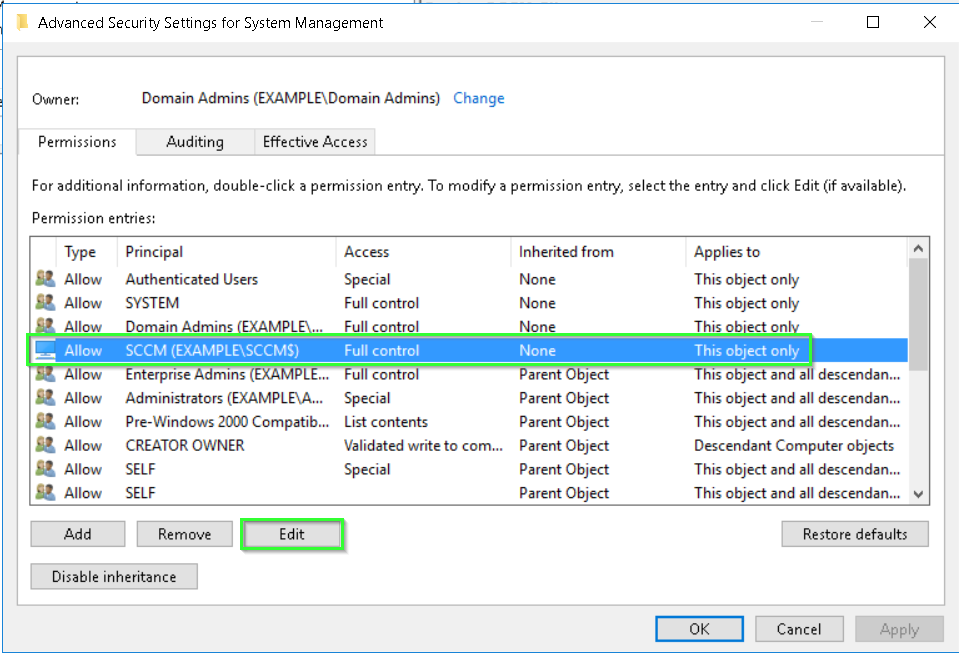
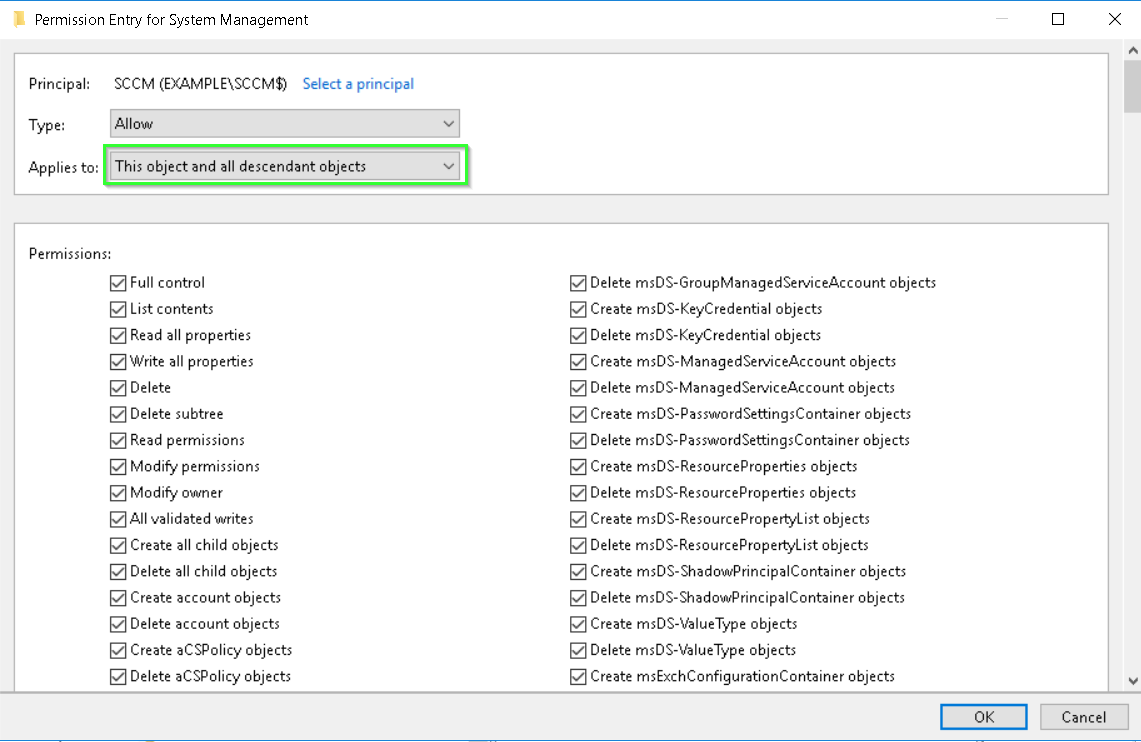
Run the Active Directory Forest Discovery.
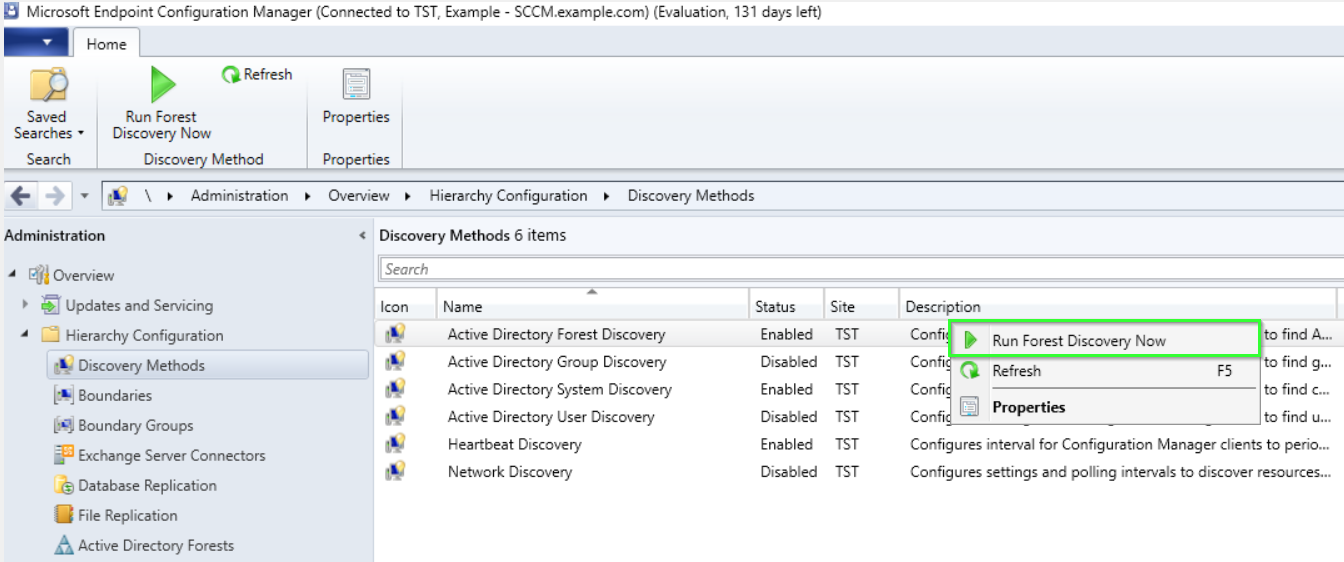
Now check back in the System Management container in AD if its populated.
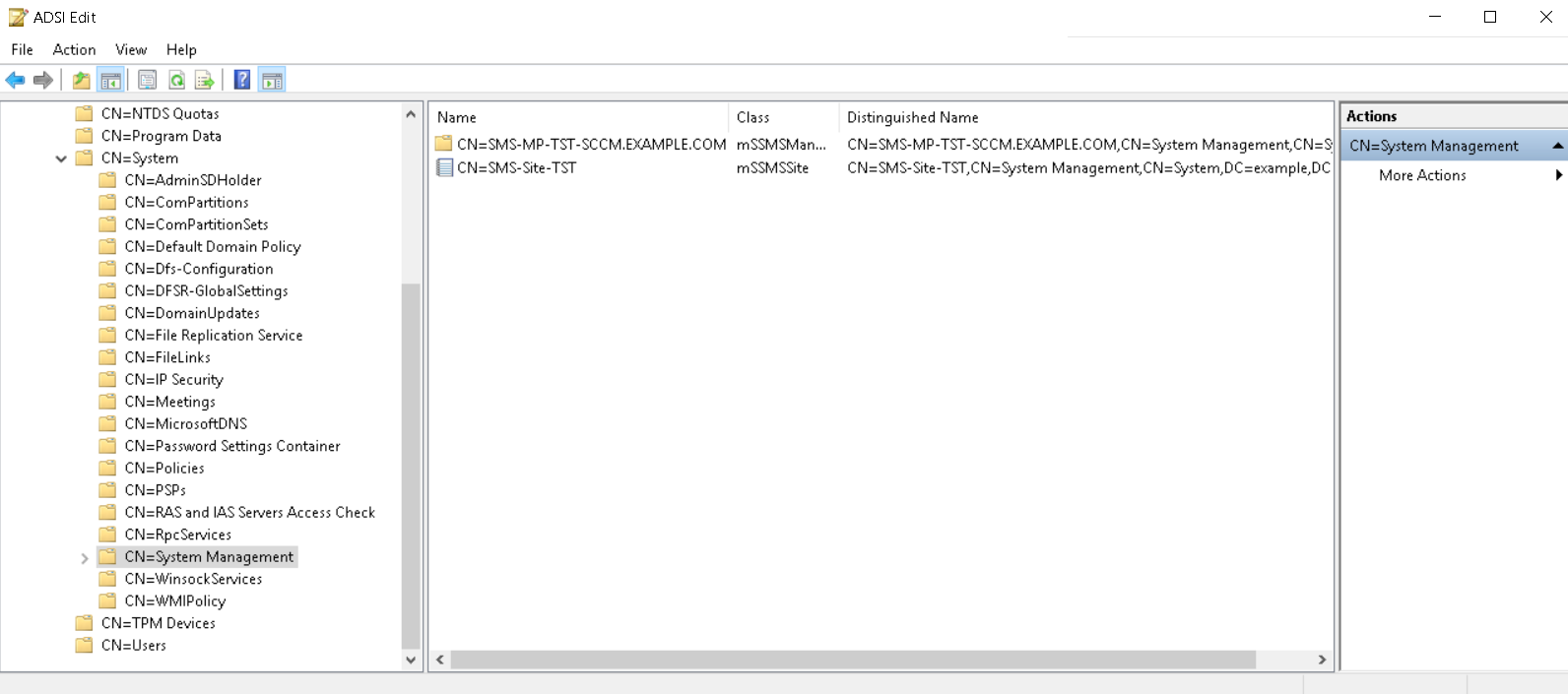
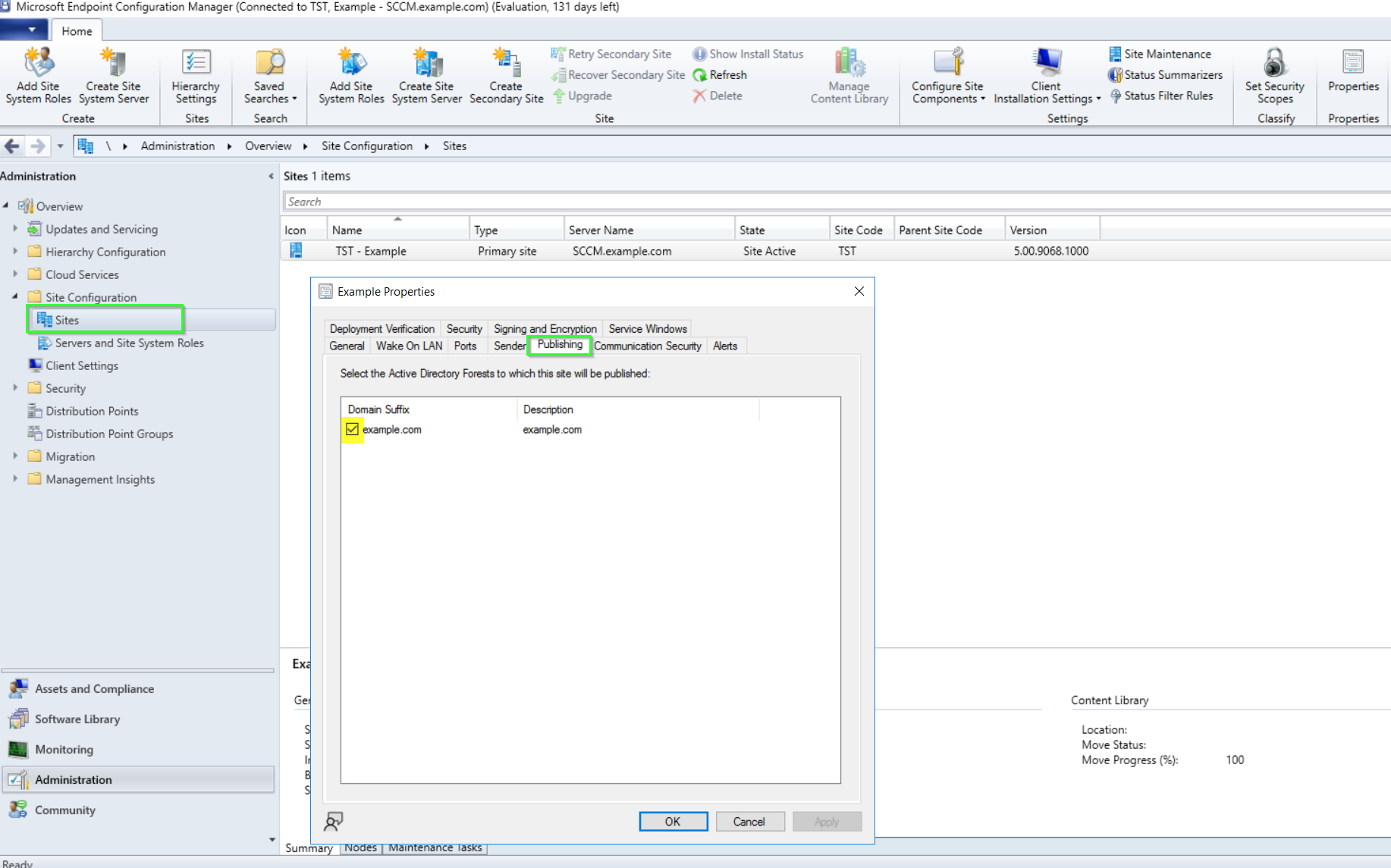
Enable a Configuration Manager site to publish site information to Active Directory forest
- In the Configuration Manager console, click Administration.
- In the Administration workspace, expand Site Configuration, and click Sites. Select the site that you want to have publish its site data. Then on the Home tab, in the Properties group, click Properties.
- On the Publishing tab of the site’s properties, select the forests to which this site will publish site data.
- Click OK to save the configuration.
To make sure there is no mistake, we can remove the previous GPO SCCM settings to ensure that the SCCM clients are using the new AD information for populating the requirements.
 Marius Ene