
In this article, I walk through the real process of bootstrapping a multi-environment Azure architecture — including Management Groups, subscription automation, billing model pitfalls, Terraform remote state design, and infrastructure isolation. Lets start.
First we login to our fresh Azure account:
az loginNext we can list if we have other accounts (should not be but just to make sure):
az account list --output table
Set the current subscription to the default:
az account set --subscription "Azure subscription 1"Now we will rename the default subscription:
az account subscription rename --subscription-id aa6261b5-9c59-4f4c-aade-2f0656dd84c5 --name "Platform"
Hit ‘Yes’ to continue the process.

You will see that it did not take effect if you use the az account list option.

But if you use the az account subscription list command it shows correctly.
az account subscription list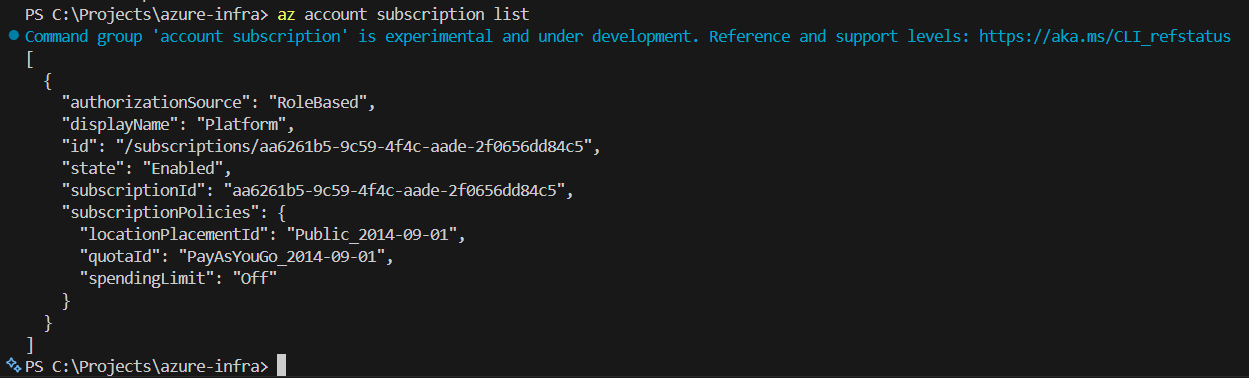
We could also try using the PowerShell commands.
First we install the module:
Install-Module -Name Az -Scope CurrentUser -Repository PSGallery -Force
It could take a bit of time so be patient.

Then we login:
Connect-AzAccount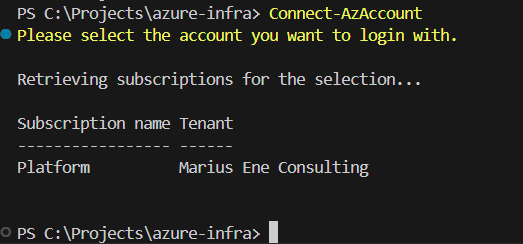
We can list our current subscription:
Get-AzSubscription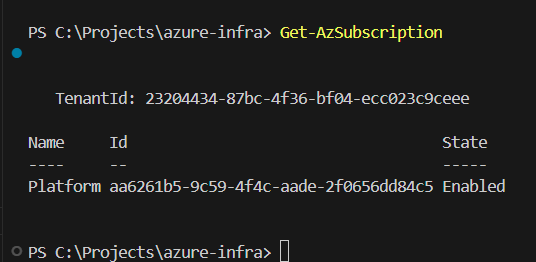
Now we try to rename the subscription if needed using the following command:
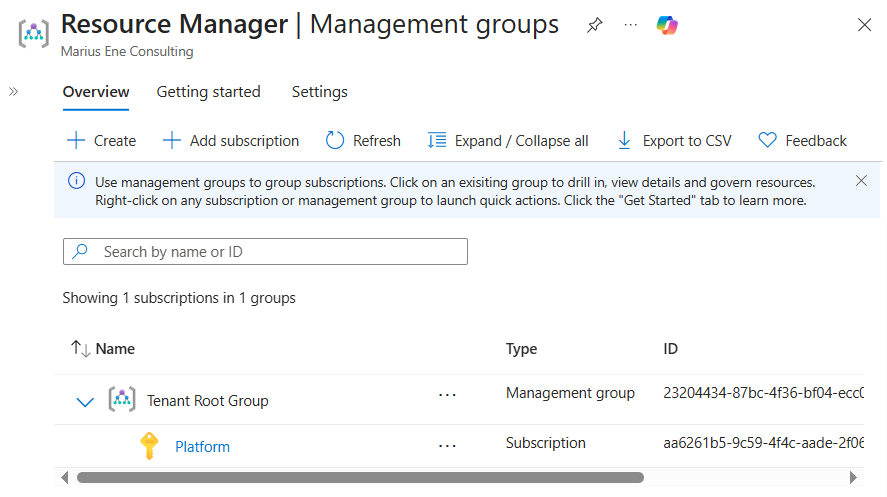
Rename-AzSubscription -SubscriptionId "aa6261b5-9c59-4f4c-aade-2f0656dd84c5" -SubscriptionName "Platform"We can see in the GUI the subscription changed to ‘Platform’:
Next we will create 3 management groups:
mg-platformmg-nonprodmg-prod
First we need to register the resource provider:
Register-AzResourceProvider -ProviderNamespace Microsoft.Management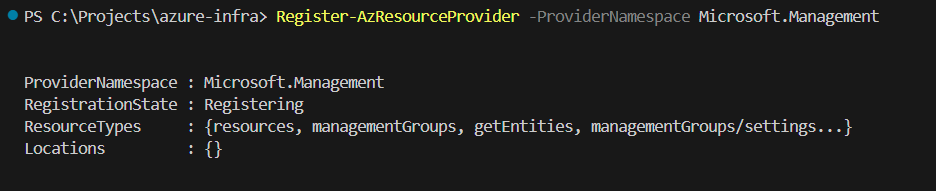
Note that the registration state is registering.
Then we check the state:
Get-AzResourceProvider -ProviderNamespace Microsoft.Management | Select RegistrationState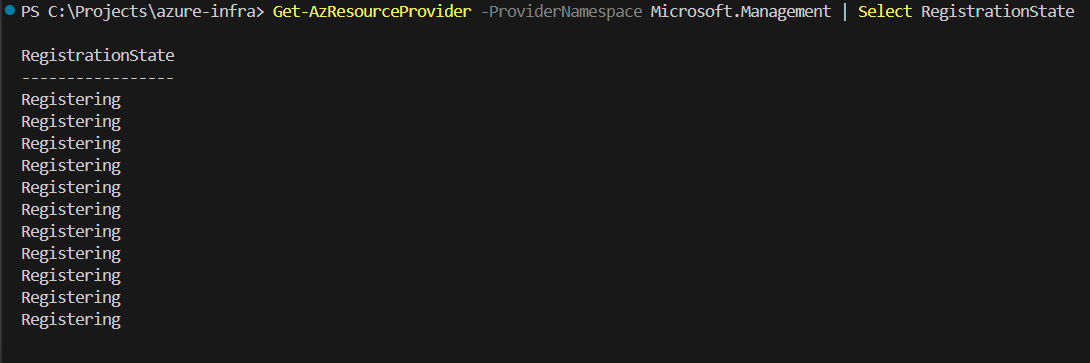
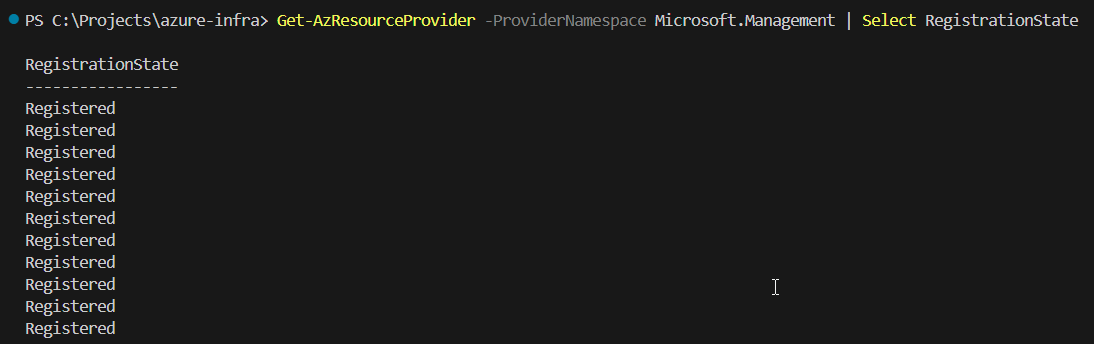
Next we create the actual management groups:
New-AzManagementGroup -GroupId "mg-platform" -DisplayName "Platform" New-AzManagementGroup -GroupId "mg-prod" -DisplayName "Prod" New-AzManagementGroup -GroupId "mg-nonprod" -DisplayName "NonProd"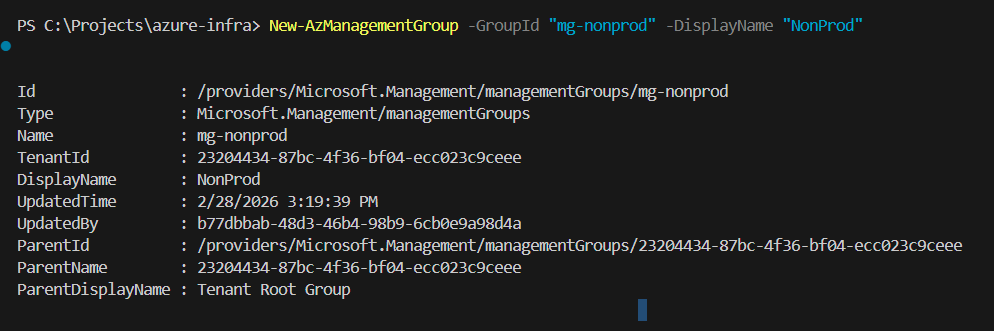
Currently it looks like this:

Now we move the ‘Platform’ subscription under the Platform management group.
We run:
New-AzManagementGroupSubscription -GroupId "mg-platform" -SubscriptionId "aa6261b5-9c59-4f4c-aade-2f0656dd84c5"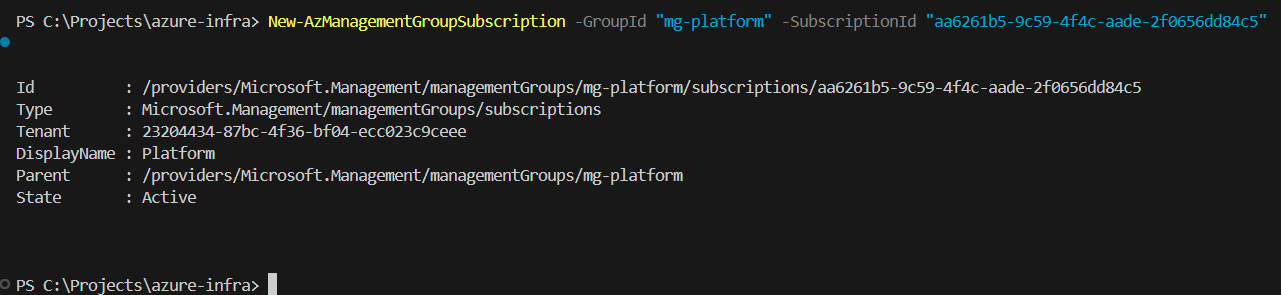
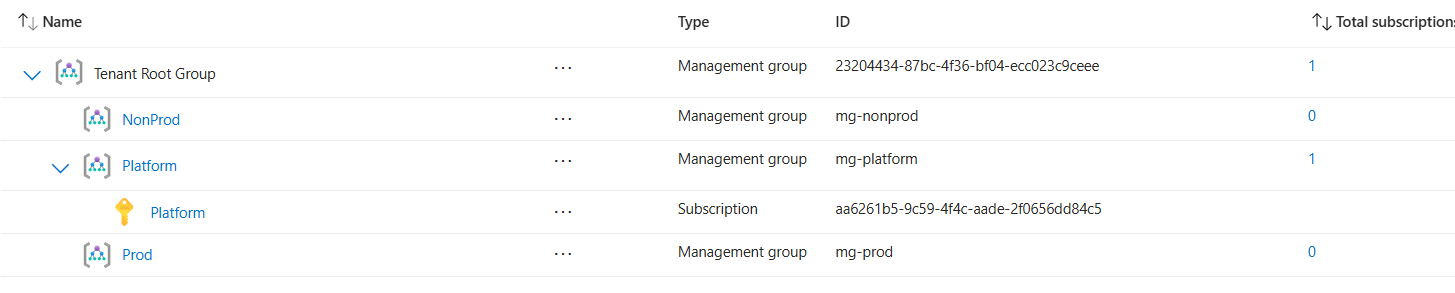
Now we will want to create a Subscription for the DEV environment:
az account subscription create --display-name "Dev" --offer-type "MS-AZR-0003P"
Unfortunately at this time, this is not functional and recommendations are to do it from the Portal. But since we insist to do it programmatically we rely on PowerShell again.
Get-AzBillingAccount | ft DisplayName, Name, Active
Get-AzBillingProfile -BillingAccountName "d74248ff-4b8c-418b-9d1f-5a1d97365db2:13773671-02e9-4e22-8c57-bd39233b40df_2019-05-31" | Format-Table Name, DisplayName
Get-AzInvoiceSection -BillingAccountName "d74248ff-4b8c-418b-9d1f-5a1d97365db2:13773671-02e9-4e22-8c57-bd39233b40df_2019-05-31" -BillingProfileName "P34R-G7SU-BG7-PGB" | Format-Table Name, DisplayName
Using this information we can do something like this:
$billingAccountName = "d74248ff-4b8c-418b-9d1f-5a1d97365db2:13773671-02e9-4e22-8c57-bd39233b40df_2019-05-31" $billingProfileName = "P34R-G7SU-BG7-PGB" $invoiceSectionName = "EHPI-6CVW-PJA-PGB" $billingScope = "/providers/Microsoft.Billing/billingAccounts/$billingAccountName/billingProfiles/$billingProfileName/invoiceSections/$invoiceSectionName" New-AzSubscription -DisplayName "Dev" -BillingScope $billingScopeWe will see that there is no New-AzSubscription cmdlet.

We will try with the REST API interface.
$tok = Get-AzAccessToken -ResourceUrl "https://management.core.windows.net/" # Convert SecureString -> plain string $token = [Runtime.InteropServices.Marshal]::PtrToStringAuto( [Runtime.InteropServices.Marshal]::SecureStringToBSTR($tok.Token) ) $tok.ExpiresOn $tok.TenantId $token.Substring(0,20)$billingAccountName = "d74248ff-..." $billingProfileName = "P34R-..." $invoiceSectionName = "EHPI-..." $scope = "/providers/Microsoft.Billing/billingAccounts/$billingAccountName/billingProfiles/$billingProfileName/invoiceSections/$invoiceSectionName" $alias = "dev-" + ([guid]::NewGuid().ToString()) $uri = "https://management.azure.com/providers/Microsoft.Subscription/aliases/$alias/?api-version=2021-10-01" $uri $bodyObj = @{ properties = @{ displayName = "Dev" workload = "DevTest" billingScope = $scope } } $headers = @{ Authorization = "Bearer $token" "Content-Type" = "application/json" } $response = Invoke-RestMethod -Method Put -Uri $uri -Headers $headers -Body ($bodyObj | ConvertTo-Json -Depth 10) $response
At this point we are here:
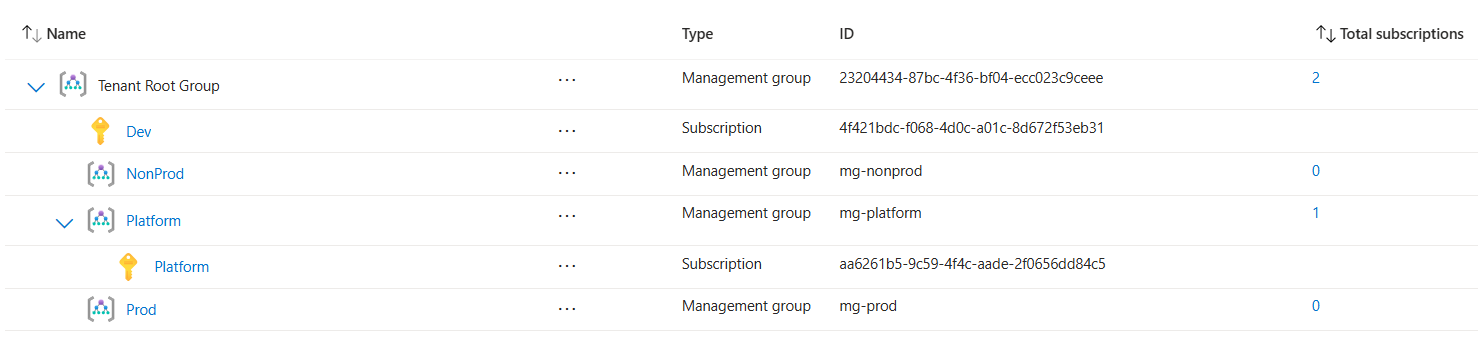
Now we move the Dev subscription to the NonProd Management Group:
$devSub = Get-AzSubscription | Where-Object Name -eq "Dev" New-AzManagementGroupSubscription -GroupId "mg-nonprod" -SubscriptionId $devSub.IdNow we are here:
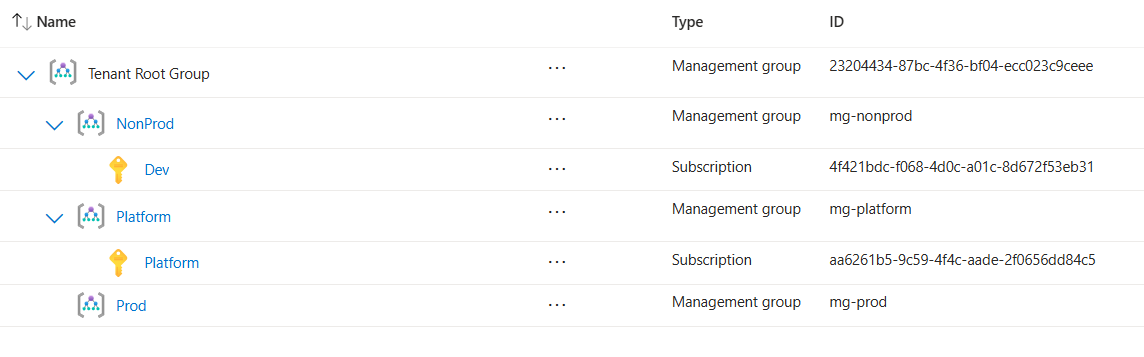
We create the rest of the subscriptions using a function:
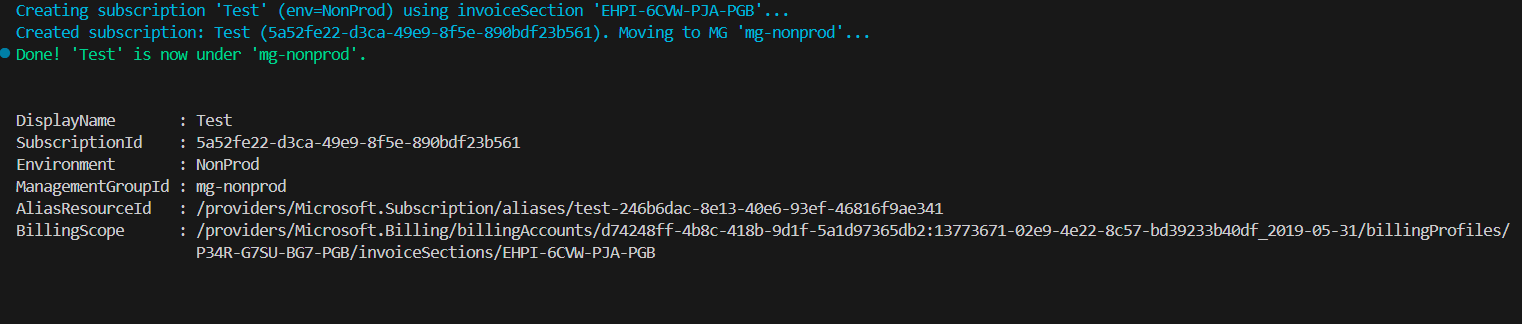
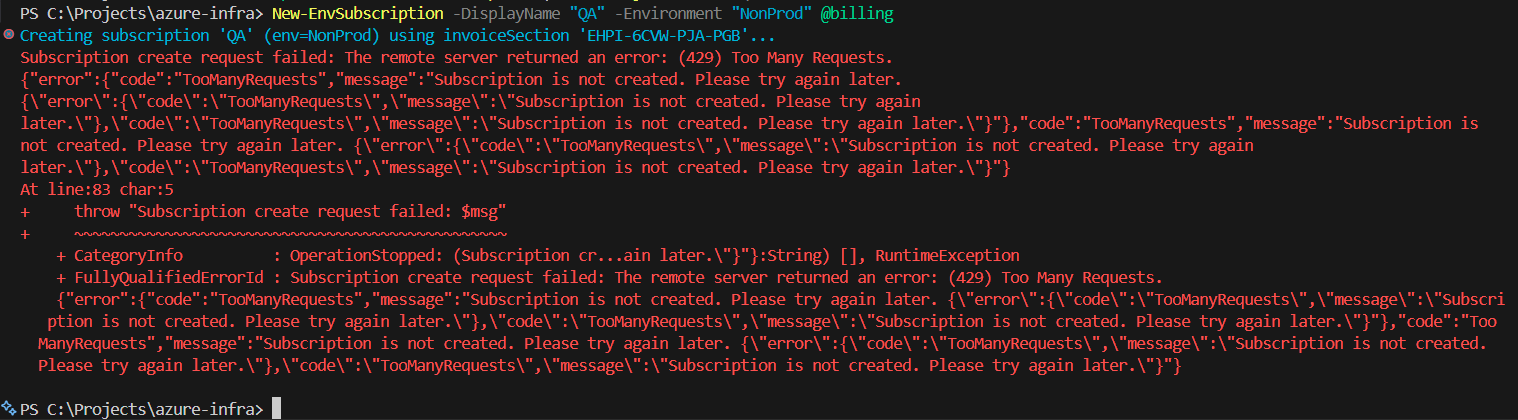
Take into account API throttling
Now lets prepare
Set-AzContext -SubscriptionId "aa6261b5-9c59-4f4c-aade-2f0656dd84c5"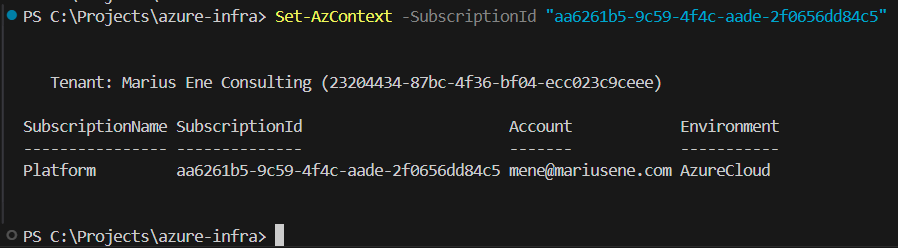
Next we create the resource group that will hold the state file.
$location = "francecentral" New-AzResourceGroup -Name "rg-tfstate" -Location $location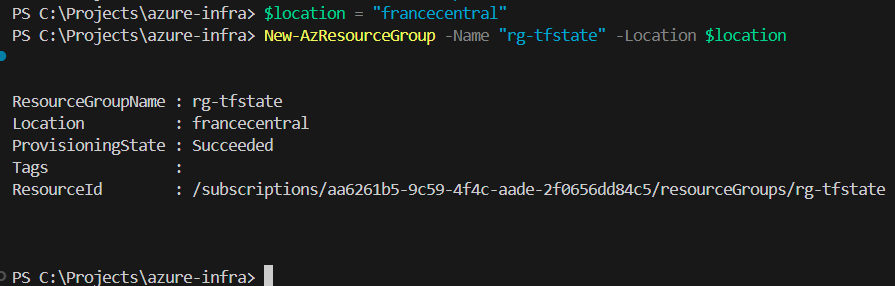
$saName = ("sttfstate" + (Get-Random -Maximum 999999)).ToLower() New-AzStorageAccount -ResourceGroupName "rg-tfstate" -Name $saName -Location $location -SkuName Standard_LRS -Kind StorageV2 -MinimumTlsVersion TLS1_2 -AllowBlobPublicAccess $false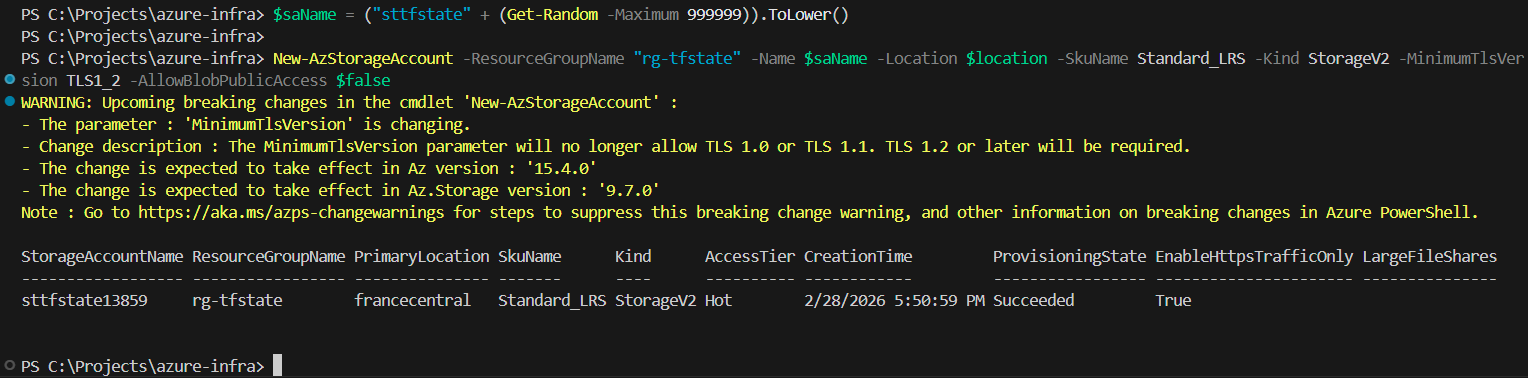
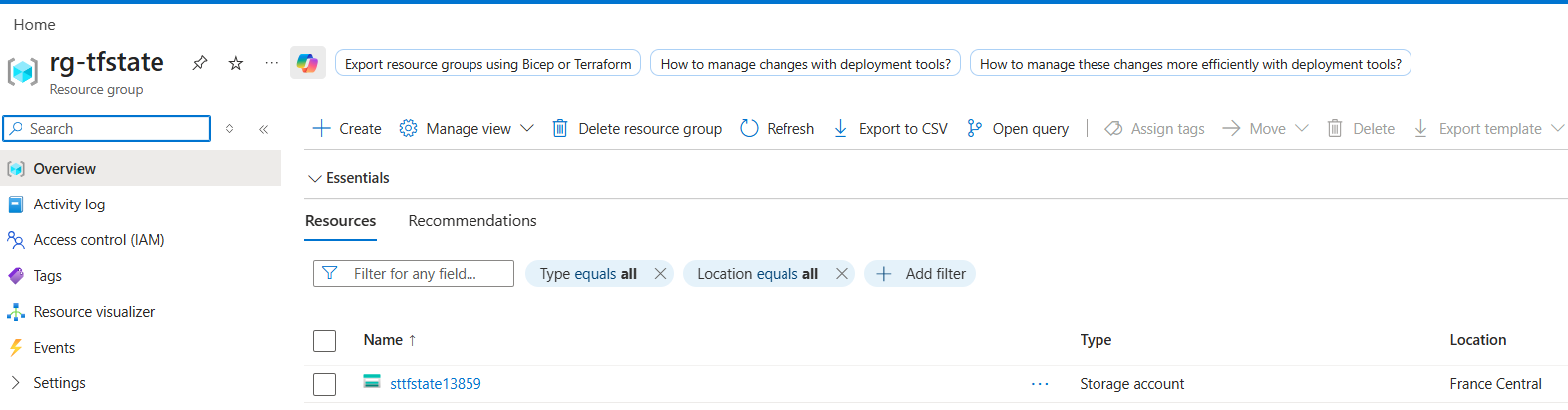
Create a private container.
$ctx = (Get-AzStorageAccount -ResourceGroupName "rg-tfstate" -Name $saName).Context New-AzStorageContainer -Name "tfstate" -Context $ctx -Permission Off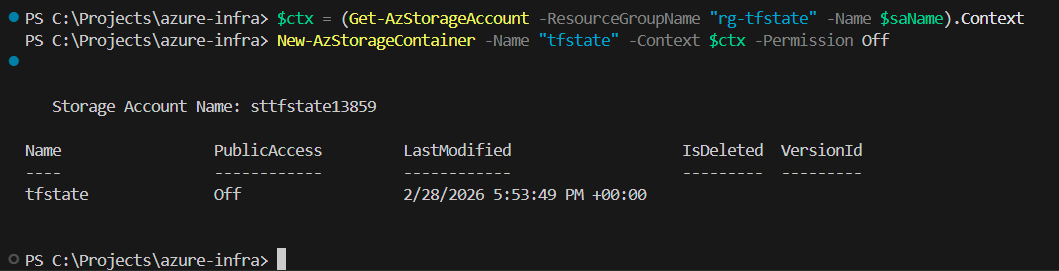
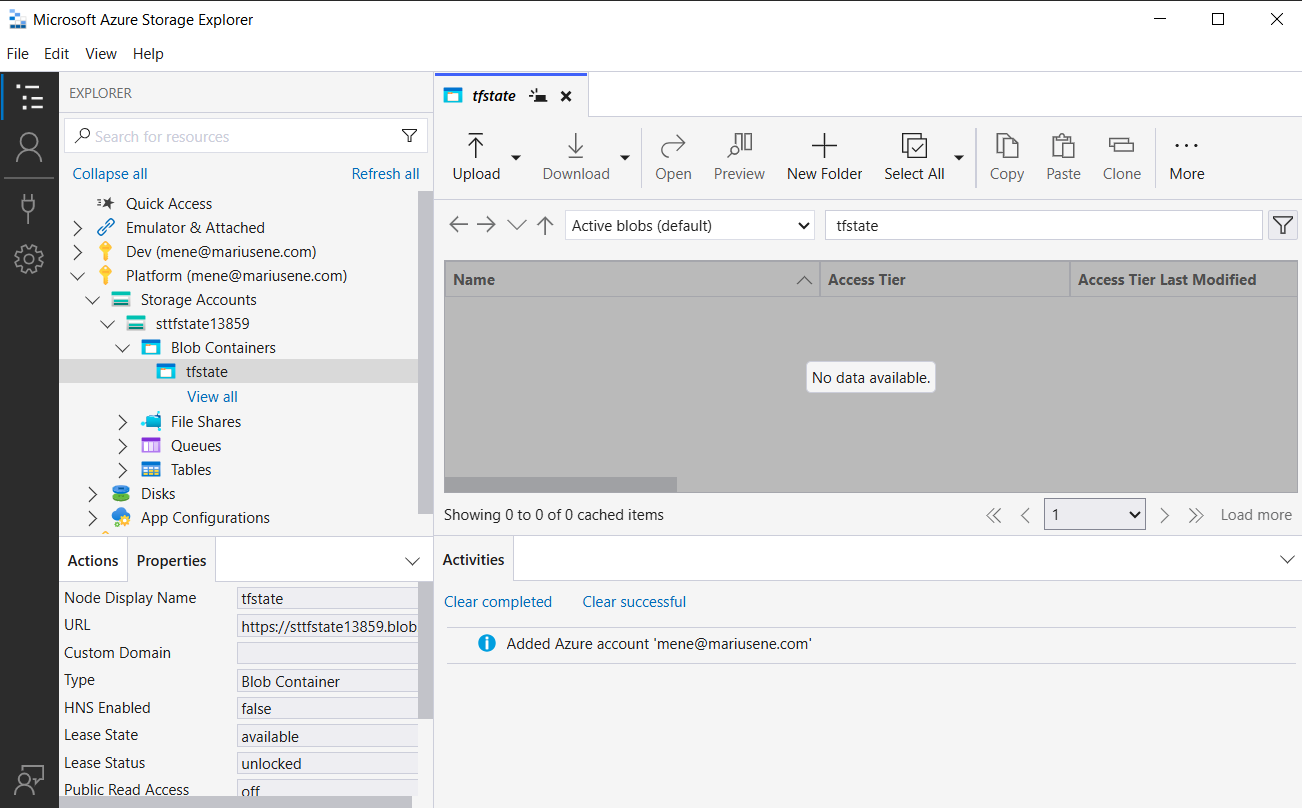
You should be able to see the container if you have for example Azure Storage Explorer.
Now we need to enable versioning.
Update-AzStorageBlobServiceProperty -ResourceGroupName "rg-tfstate" -AccountName $saName -IsVersioningEnabled $true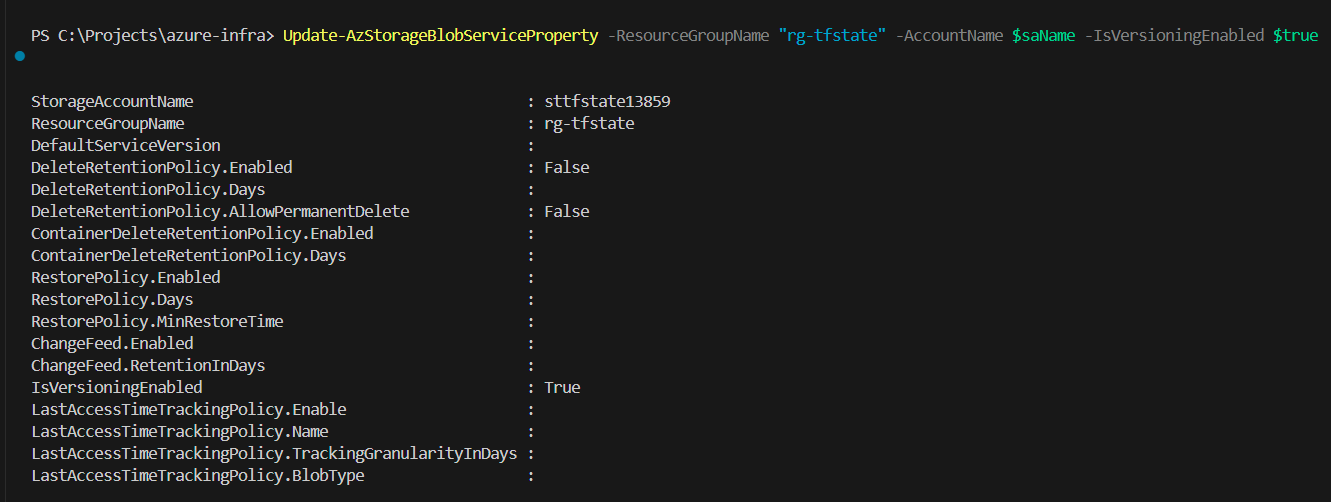
In the terraform code:
backend.hcl
resource_group_name = "rg-tfstate" storage_account_name = "sttfstate13859" container_name = "tfstate" key = "dev/compute.tfstate"providers.tf
variable "subscription_id" { type = string } provider "azurerm" { features {} subscription_id = var.subscription_id }terraform.tfvars
subscription_id = "4f421bdc-f068-4d0c-a01c-8d672f53eb31" # use your subscription id.backend.tf
terraform { backend "azurerm" {} }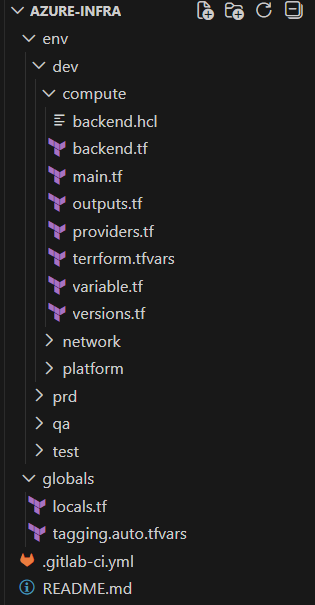
Navigate to the one of the nodes like env\dev\compute and initiate terrraform:
terraform init -reconfigure -backend-config="backend.hcl"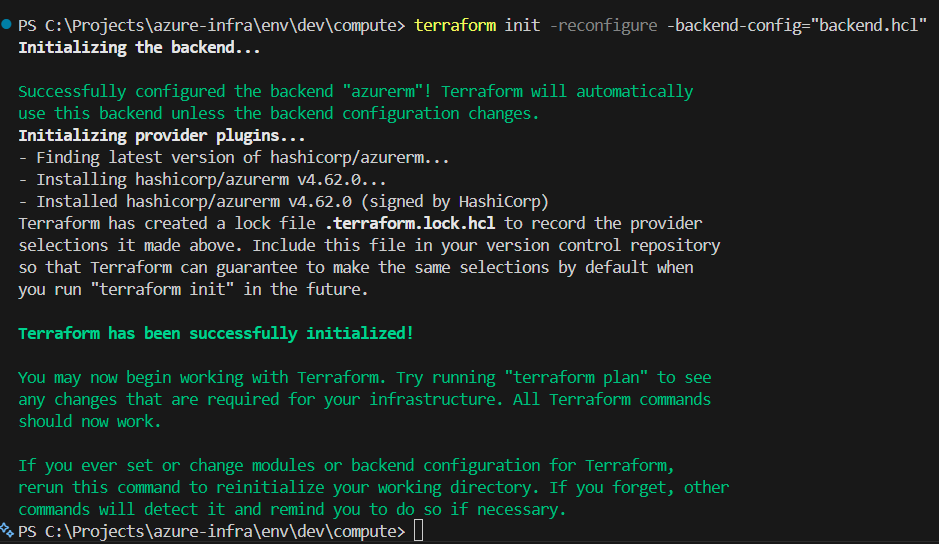
At this point the state file is initialized.
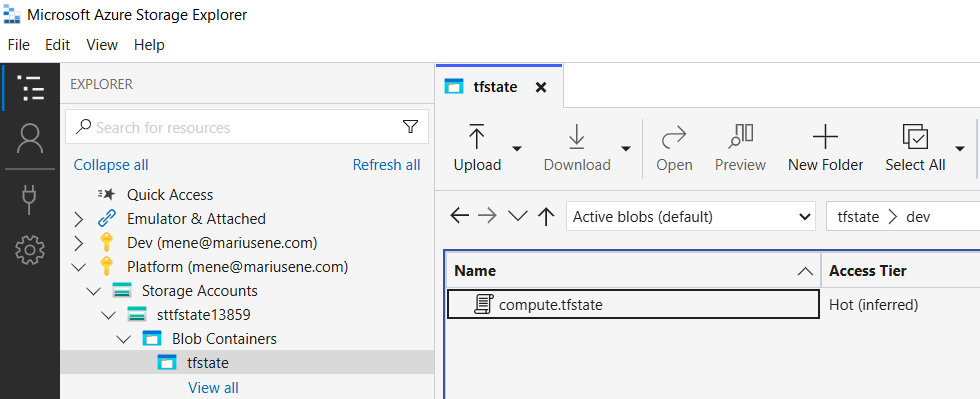
Next we can run terraform plan.
terraform plan
Now we can repeat the same process for all other components.
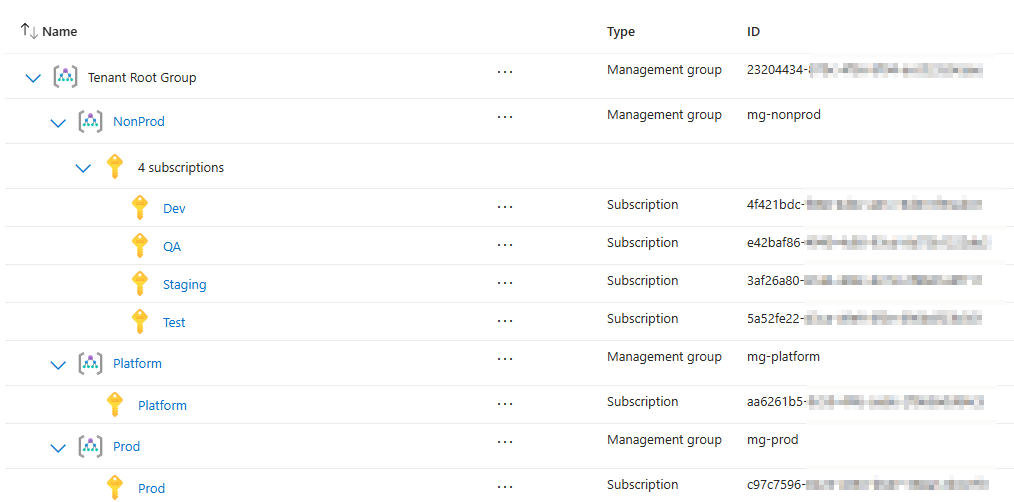
Overall the Azure subscriptions should look like this:
 Marius Ene